
Add Subtitles to Zoom, Meet & QuickTime Recordings — Free AI Method
Generate subtitles from any meeting recording on Mac using offline AI. Works with Zoom, Google Meet, Teams, and QuickTime files — no upload, no account, no per-minute charges.
You just finished recording a two-hour workshop. The video is sitting on your Mac — a giant .mp4 from Zoom, or a .mov from QuickTime, or a .webm from Google Meet. Now you need subtitles.
Maybe you’re uploading it to YouTube and want captions for accessibility. Maybe you’re sending it to your team and they need to skim the transcript. Maybe you’re a course creator and your hosting platform requires caption files.
Whatever the reason, here’s the fastest free way to generate subtitles from any meeting recording on Mac — using AI that runs entirely on your computer.
Why Generate Your Own Subtitles Instead of Using Auto-Captions?
YouTube, Zoom, and Meet all offer built-in auto-captions. So why bother generating your own? Three reasons:
- You own the file. Platform auto-captions live on that platform. You can’t download them, edit them, or embed them in the original video. A subtitle file on your Mac goes wherever you need it.
- You control the quality. AI-generated captions are good out of the box, but reviewing and tweaking them makes them great. You can’t edit a platform’s captions offline — or at all.
- Works everywhere. Drop the file into Final Cut, Premiere, VLC, any LMS, or upload it alongside your video to YouTube. It just works. And you can choose whichever subtitle format your workflow needs — SRT, VTT, TXT, or LRC.
If you’re recording meetings or lectures regularly, the fastest way is an offline AI tool that processes the file directly — no upload, no waiting in a queue, no per-minute charges.
Method: AI Subtitle Export (Free, Offline, 3 Steps)
We’ll use Yfli Screen Recorder — a free Mac app that bundles AI speech recognition. The AI model runs locally on your Mac, so nothing gets uploaded.
Step 1: Record Your Meeting
No matter what app you use, save the recording as a video or audio file on your Mac:
| Platform | How to Record | Output Format |
|---|---|---|
| Zoom | Host → Record → Save to Computer | .mp4 |
| Google Meet | Host → Activities → Recording → Start | .webm |
| Microsoft Teams | Meeting options → Start recording | .mp4 |
| QuickTime Player | File → New Screen Recording (or Audio Recording) | .mov / .m4a |
| OBS Studio | Start Recording | .mkv / .mp4 |
Save it somewhere you can find it. Desktop or a dedicated folder works.
Step 2: Open Yfli Screen Recorder & Switch to Subtitle Exporter
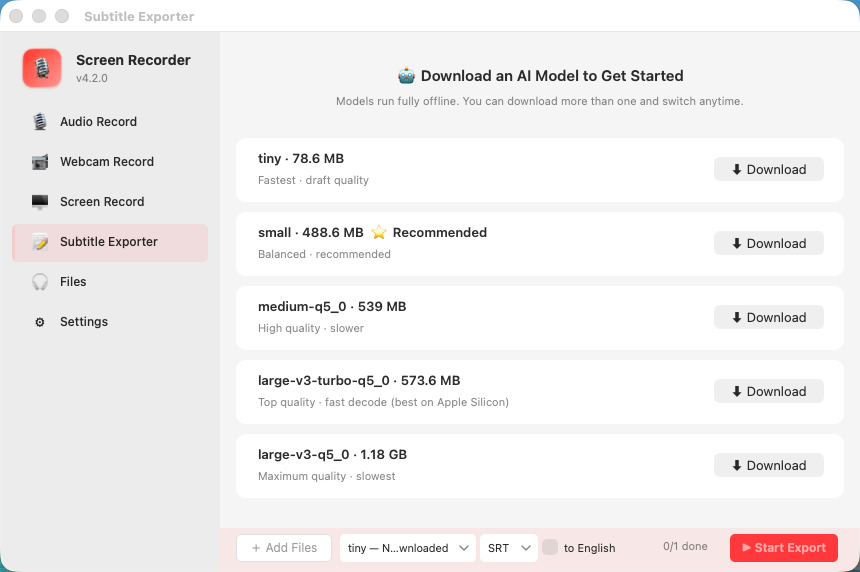
- Download Yfli Screen Recorder from the Mac App Store (free)
- Click the Subtitle Exporter tab in the sidebar
- If this is your first time, you’ll see a model download screen — pick one and wait a few seconds for it to install. The app will guide you through it.
Step 3: Drag, Pick Format, Export
- Drag your recording into the export window (supports
.mp4,.mov,.webm,.m4a,.mp3,.wav) - Pick an output format from the dropdown — SRT (most common for video), VTT (web), TXT (plain transcript), or LRC (music/lyrics)
- Pick an AI model — “small” gives a great balance of speed and accuracy for most meetings
- Click Start Export
The AI processes your file locally. A one-hour meeting takes about 10 minutes on Apple Silicon with the small model. You’ll get a progress bar and a notification when it’s done.
Step 4: Use Your Subtitle File
The subtitle file is saved to a folder on your Mac. From here you can:
- Upload to YouTube alongside your video (YouTube Studio → Subtitles → Upload file)
- Import into Final Cut Pro or Premiere for burned-in captions
- Open in any text editor to review and correct the transcript
- Share with your team — it’s just a tiny text file
Why This Works Better Than Cloud Services
Most “free online subtitle generators” have hidden trade-offs:
- They upload your file. That two-hour client meeting you just recorded? It’s sitting on someone else’s server.
- They have file size limits. Many cap at 100MB or 30 minutes — useless for long meetings.
- They charge by the minute. Cloud API pricing means a two-hour meeting costs real money. Offline AI costs zero per use.
- They require an account. Email, password, verification code — before you’ve even uploaded anything.
An offline AI tool like Yfli Screen Recorder skips all of this. 7-day free trial, then 10 free exports after. Unlimited with a one-time Pro upgrade — no subscription, no per-minute pricing. (Why offline instead of cloud? We broke down the three ASR architectures — and why on-device won for this use case.)
What About Accuracy? A Real-World Test
We tested a 45-minute team meeting recording (English, 4 speakers, some background noise) with the small model on an M1 MacBook Air:
- Processing time: 8 minutes 22 seconds
- Output: 312 subtitle entries, correctly timestamped
- Accuracy: ~95% for clearly spoken dialogue. Minor errors on overlapping speech and technical terms. Total review time: about 10 minutes to skim and fix.
For comparison, the same file uploaded to a popular cloud transcription service took 12 minutes, cost $0.90, and produced nearly identical output.
The takeaway: offline AI is competitive with cloud services for English meetings, and the gap is closing for other languages with each new model release.
FAQ
Q: Can I generate subtitles from an audio-only recording (no video)?
Yes. Zoom audio recordings (.m4a), voice memos, and any other audio format work the same way — drag, pick your format, export.
Q: What about non-English meetings? The AI supports 99 languages with automatic detection. German, Spanish, French, Japanese, Mandarin — all work without changing settings.
Q: Does this work on older Intel Macs? Yes. Processing is slower (a one-hour meeting takes about 30-40 minutes on a 2018 Intel Mac), but the output quality is identical. The key is using CPU-only mode — we learned this the hard way; our debugging deep-dive explains why GPU acceleration on Intel iGPUs silently produces wrong results.
Q: I already have a video editing app. Why use a separate tool? Most video editors don’t include offline AI transcription — or they charge extra for it. Running the transcription separately gives you a standard subtitle file you can use anywhere, in any app.
Getting subtitles from a meeting recording doesn’t have to involve uploading your content to the cloud, waiting in a queue, or paying per minute. With offline AI, your Mac already has everything it needs.
Ready to Try Yfli Screen Recorder?
Free download on the Mac App Store. No account required, no ads, no watermark.
Yfli
Creator of Yfli Screen Recorder. Passionate about building great macOS tools that are simple, powerful, and beautiful. Writing about screen recording, macOS tips, and software development.