
Yfli Screen Recorder v4.1.0 — Free for Everyone + New Pro Features
v4.1.0 is our biggest strategy shift yet — screen, audio, and camera recording are now completely free with no time limits. Plus, three highly-requested features land in one release.
v4.1.0 is the most significant strategy shift we’ve ever made at Yfli Screen Recorder. We’ve removed every recording time limit — screen, audio, camera, all of it — and shipped three of the most-requested features in a single release. Here’s the full breakdown.
Recording Is Now 100% Free
The old free tier had a 30-second limit. You’d launch the app, hit record, and before you could even start talking, the timer would cut you off. That was the wrong first impression.
Here’s what changed:
| Feature | v4.0.4 | v4.1.0 |
|---|---|---|
| Audio Recording (MP3) | 30s trial | Free, unlimited |
| Screen Recording | 30s trial | Free, unlimited |
| Camera Recording | 30s trial | Free, unlimited |
| Webcam Picture-in-Picture | Pro only | Free |
Pro is now what it always should have been — premium add-ons, not a paywall. Advanced audio formats (WAV, FLAC, AAC, M4A), mouse click effects, and scheduled recording remain Pro features. But the core recording experience? Completely open.
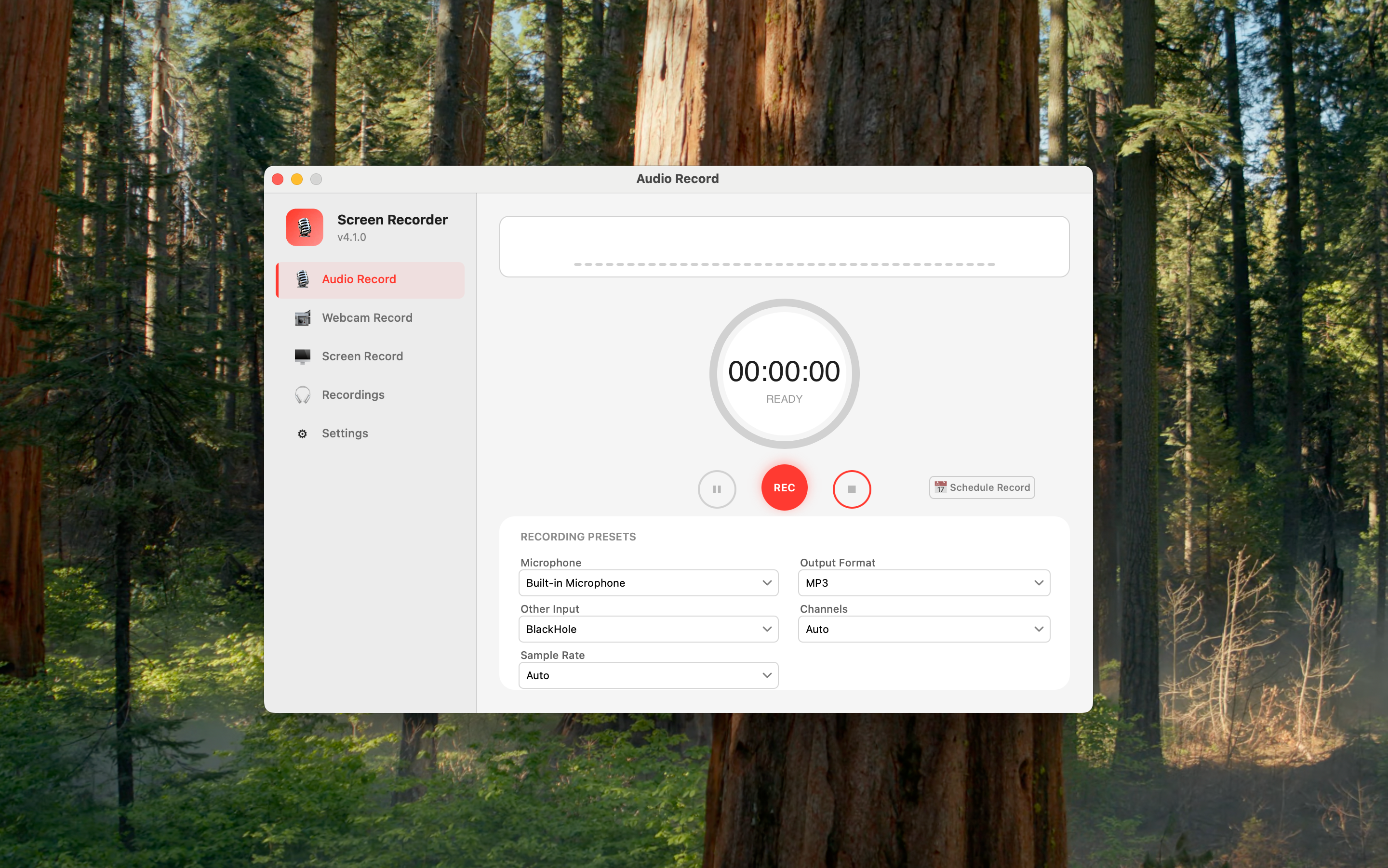
Schedule Recording: Set It and Forget It
This is the one I’ve wanted personally. When you’re recording online meetings, webinars, or remote interviews, there’s a universal need: start automatically, stop automatically. You shouldn’t have to babysit a timer.
Schedule Recording works across both audio and screen recording modules. Two modes:
- Stop After — set a duration (say, 30 minutes), hit record, and it stops on its own when time’s up
- Schedule Recording — pick a specific start and end time. The app wakes up, starts recording, and stops at the scheduled time, hands-free
If the start time has already passed, recording begins immediately. Setting a new schedule automatically cancels the previous one. And the record button shows a live countdown so you always know where you stand.
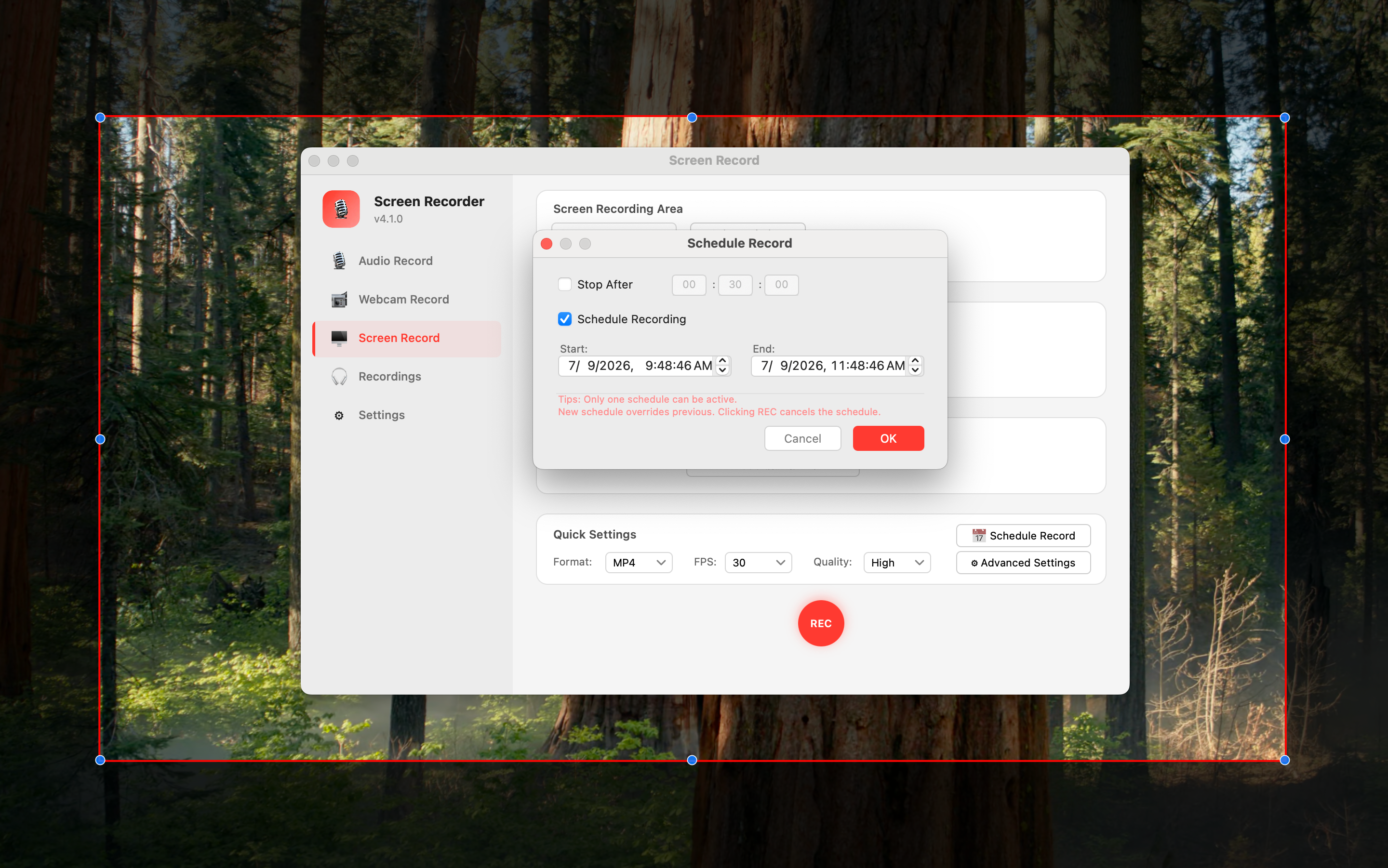
⚠️ Schedule Recording is a Pro feature. Basic recording (screen, audio, camera) is completely free for everyone.
Other Input: Mix Two Audio Sources with BlackHole
Here’s a problem every podcaster runs into: your mic captures your voice just fine, but how do you also record the other person’s voice coming through your computer?
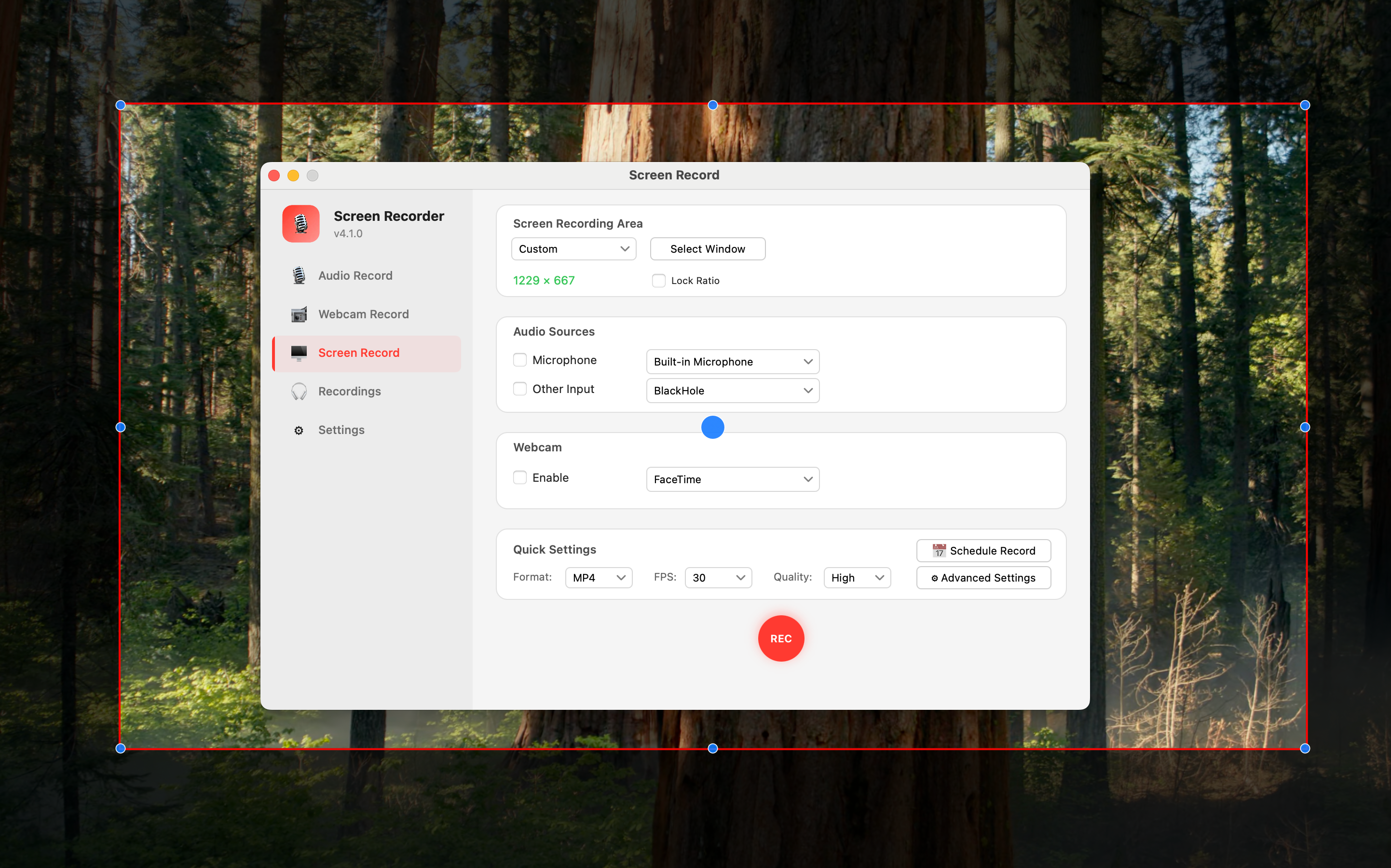
v4.1.0 adds an Other Input dropdown in the audio recording panel. Pick a second audio device, and it gets mixed with your main microphone in real time before encoding. The classic setup:
Microphone:    MacBook Pro Microphone  →  your voice
Other Input:   BlackHole               →  system audio / remote voice
                                         ↓
                              One clean MP3 file, both sources blended
BlackHole is the go-to virtual audio driver on macOS — open source, free, and widely used. Install it once, Yfli Screen Recorder detects it automatically, and you’re set.
You only need one valid input to record. Select both, and they mix automatically. Device selections persist across sessions, so you configure it once and never touch it again.
Mouse Click Effects: Never Lose Your Cursor
If you’ve ever watched a tutorial and thought “wait, what did they just click?”, you know the problem. The cursor is tiny, and without visual feedback, viewers get lost.
v4.1.0 ships with 4 click animation presets:
| Preset | Effect | Color |
|---|---|---|
| Ripple | Hollow ring expands and fades (600ms) | #007AFF |
| Pulse Ring | Solid red circle pulses and fades | #FF3B30 |
| Glow | Soft yellow glow expands and fades | #FFCC00 |
| Custom | Load your own GIF or PNG frame animation | Custom |
Both left and right clicks trigger the effect. Scale is adjustable from 0.5x to 2.0x. Everything runs through the CIImage GPU pipeline with zero-copy compositing, so there’s virtually no impact on recording frame rate.
Select any non-Off effect and Show Mouse Cursor turns on automatically. Turn off Cursor, and it switches back to Off. In Custom mode with no file selected, it behaves like Off — no surprises.
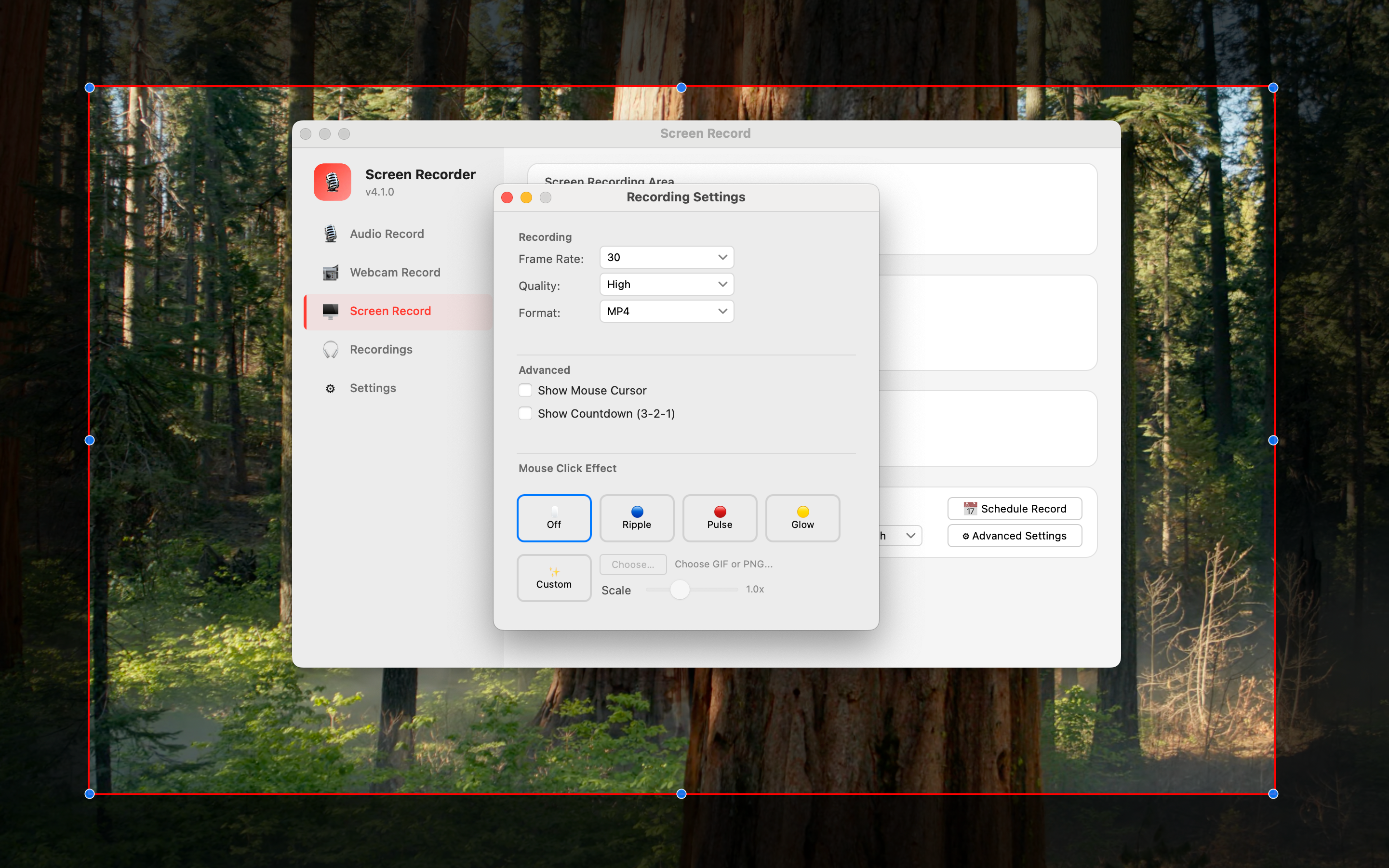
⚠️ Mouse click effects are a Pro feature.
Smaller Fixes Worth Mentioning
- Preview window jitter fixed — optimized the layout update logic for the screen recording preview window, eliminating the visual shake that could happen during re-layout
- Annotation text input fixed — the text tool in annotations now properly accepts keyboard input. You can type directly onto your recording canvas while all other annotation tools (arrows, rectangles, brush) continue to work normally
Ready to Try Yfli Screen Recorder?
Free download on the Mac App Store. No account required, no ads, no watermark.
Yfli
Creator of Yfli Screen Recorder. Passionate about building great macOS tools that are simple, powerful, and beautiful. Writing about screen recording, macOS tips, and software development.