

Yfli Screen Recorder vs QuickTime — Which One Is Right for You?
Is QuickTime enough? A real-world comparison of Yfli Screen Recorder vs QuickTime Player across three scenarios: tutorials, podcast recording, and scheduled capture. We compare formats, quality controls, annotations, mouse effects, and more.
Your Mac already has QuickTime Player. It’s free, it’s right there, and yeah — it can record your screen. So why bother with anything else?
Here’s the thing: QuickTime is fine until it isn’t. It works for a quick one-off capture. But the moment you need to pick a format, tweak the quality, draw on your screen while recording, add your face in the corner, or set it to record while you’re away — you’re out of luck. It just can’t do any of that.
That’s why we built Yfli Screen Recorder. It handles the stuff QuickTime doesn’t, and the basics stay free forever. No catch.
Let’s walk through how they actually compare in real life — not a spec sheet, but the stuff that matters when you’re about to hit record.
1. The Big Picture: What Each One Can (and Can't) Do
| Feature | QuickTime Player | Yfli Screen Recorder |
|---|---|---|
| Screen recording | ✅ | ✅ No time limit |
| Capture area | Full screen / window / custom region | Full screen / window / custom region |
| Video formats | MOV/H.264 only | MP4 (H.264/H.265) / MOV / M4V, 15+ presets |
| Frame rate & quality settings | ❌ Nope | ✅ Dial it in before you record |
| Microphone recording | ✅ | ✅ |
| Sample rate & channels | ❌ Whatever the system picks | ✅ You pick: 44.1k/48k/96k, Stereo or Mono |
| System audio capture | ❌ | ✅ Grab it with BlackHole (free) |
| Draw on screen (arrows, shapes, text, freehand) | ❌ | ✅ Separate layer, won’t mess up your footage |
| Mouse click effects (ripple, pulse, glow, custom GIF) | ❌ | ✅ So people actually see what you clicked |
| Webcam PiP | ❌ | ✅ Drag it, resize it, toggle it anytime |
| Camera-only recording | ❌ | ✅ Just your face, no screen |
| Scheduled recording | ❌ | ✅ Set it and forget it |
| Recording library with playback | ❌ | ✅ Card view, built-in preview |
| Price | Free | Free download, basics free forever |
2. Making a Tutorial or Product Demo
Let’s say you’re recording a how-to video. Nothing fancy — just walk through some software and explain what you’re doing.
You open QuickTime, go to File → New Screen Recording, and hit the button. You get a .mov file. What frame rate? No clue. Can you pick the output format? Nope — MOV or nothing. What if you want to circle a button or draw an arrow to say “click here”? Not possible. You’d need to open another app afterward just to add annotations. That’s an extra step. Every. Single. Time.
Yfli Screen Recorder takes a different approach:
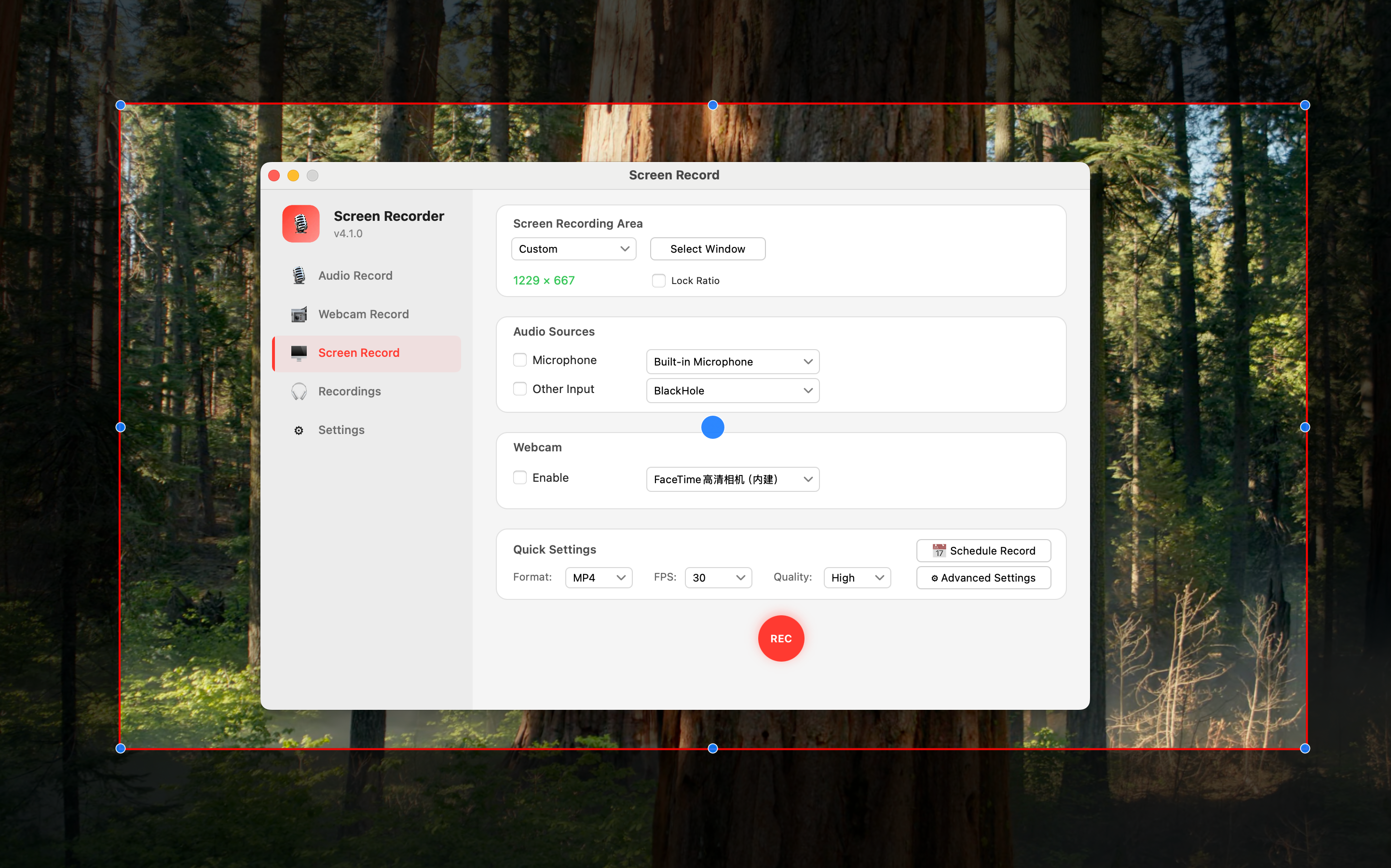
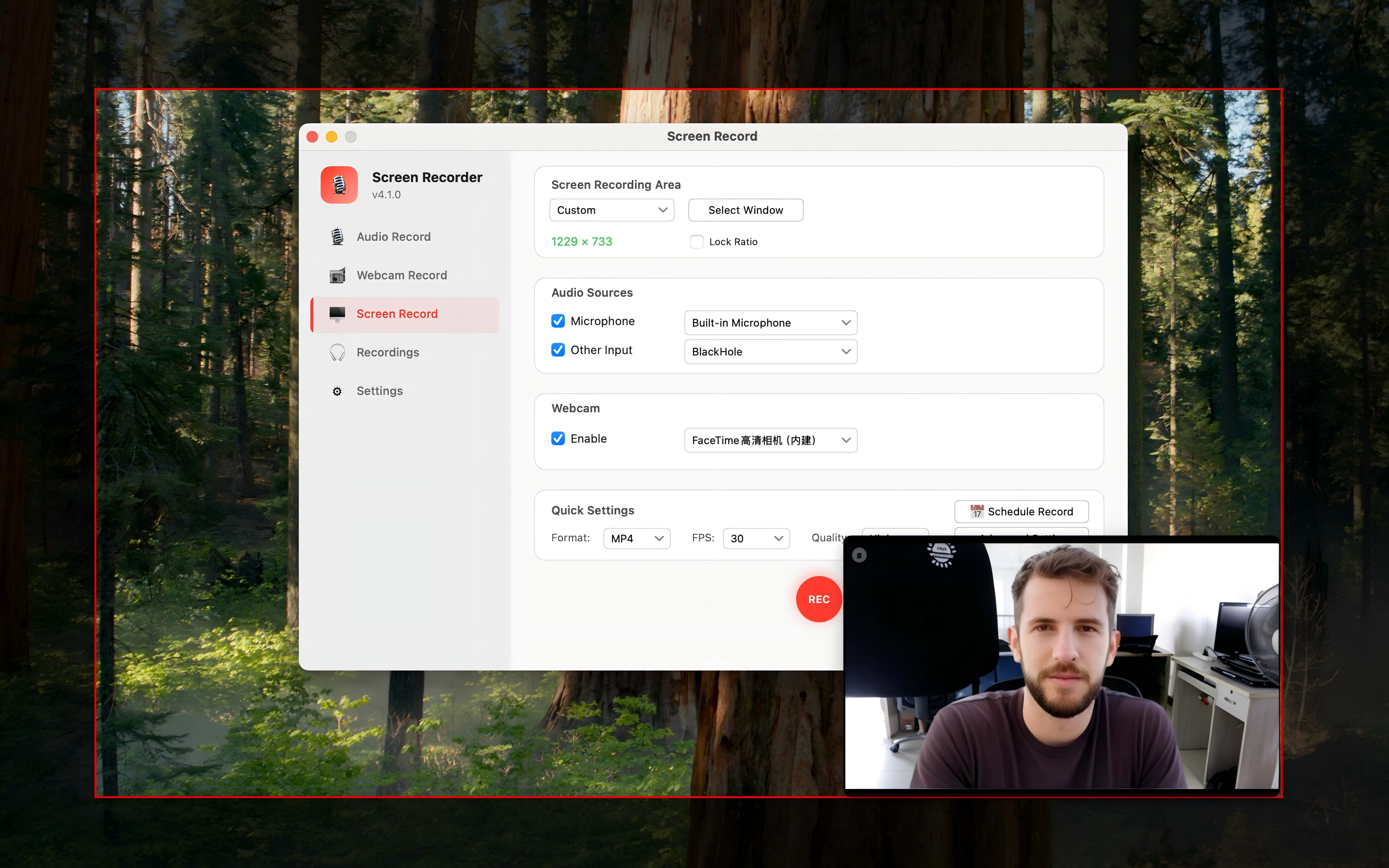
You set things up once, then record. Pick your area — full screen, a specific window, or drag out exactly the part you want. Choose your mic. Decide if you want your face in the corner. Pick the output format. Done.
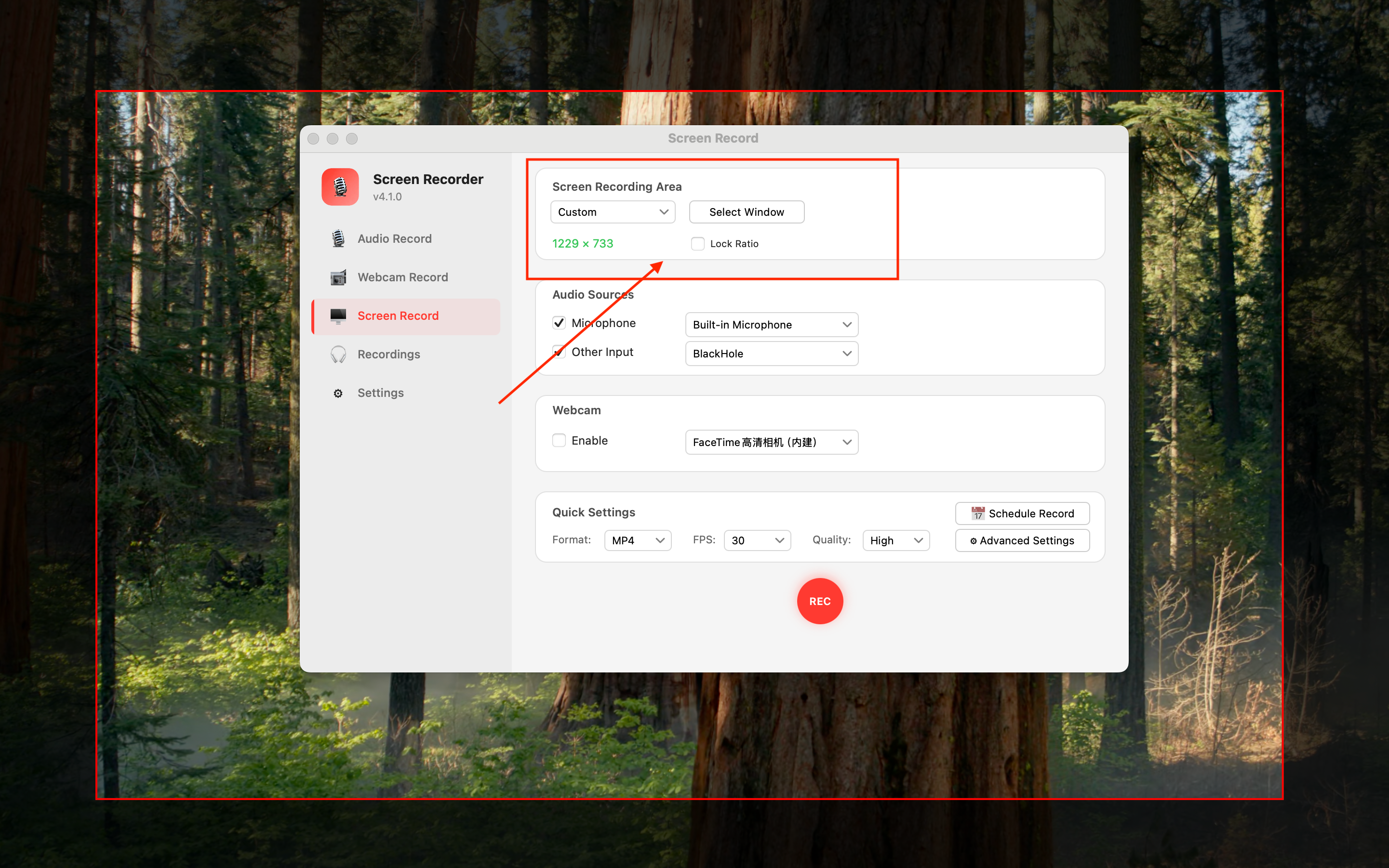
While you’re recording, the annotation tools are right there. Rectangle, circle, arrow, text, freehand — click and draw, drag to position. They sit on a separate layer, so your original video stays untouched. Mess up? Just undo.
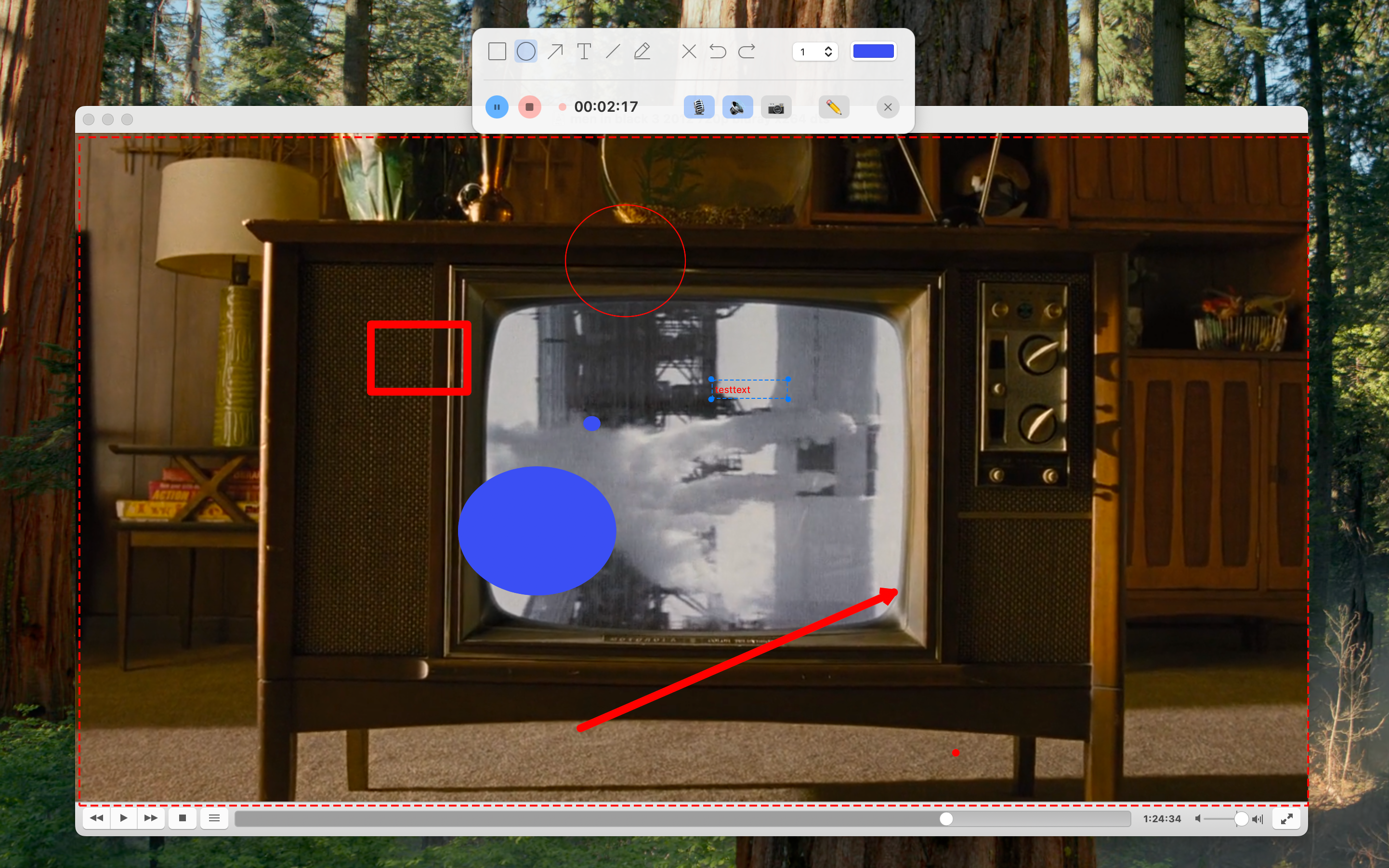
And the mouse click effects? Honestly, this might be the feature you didn’t know you needed. If you’ve ever made a tutorial, you’ve heard this question: “Wait, what did you just click?” Ripple, pulse, glow — or drop in your own GIF. Problem solved. No more confused viewers.
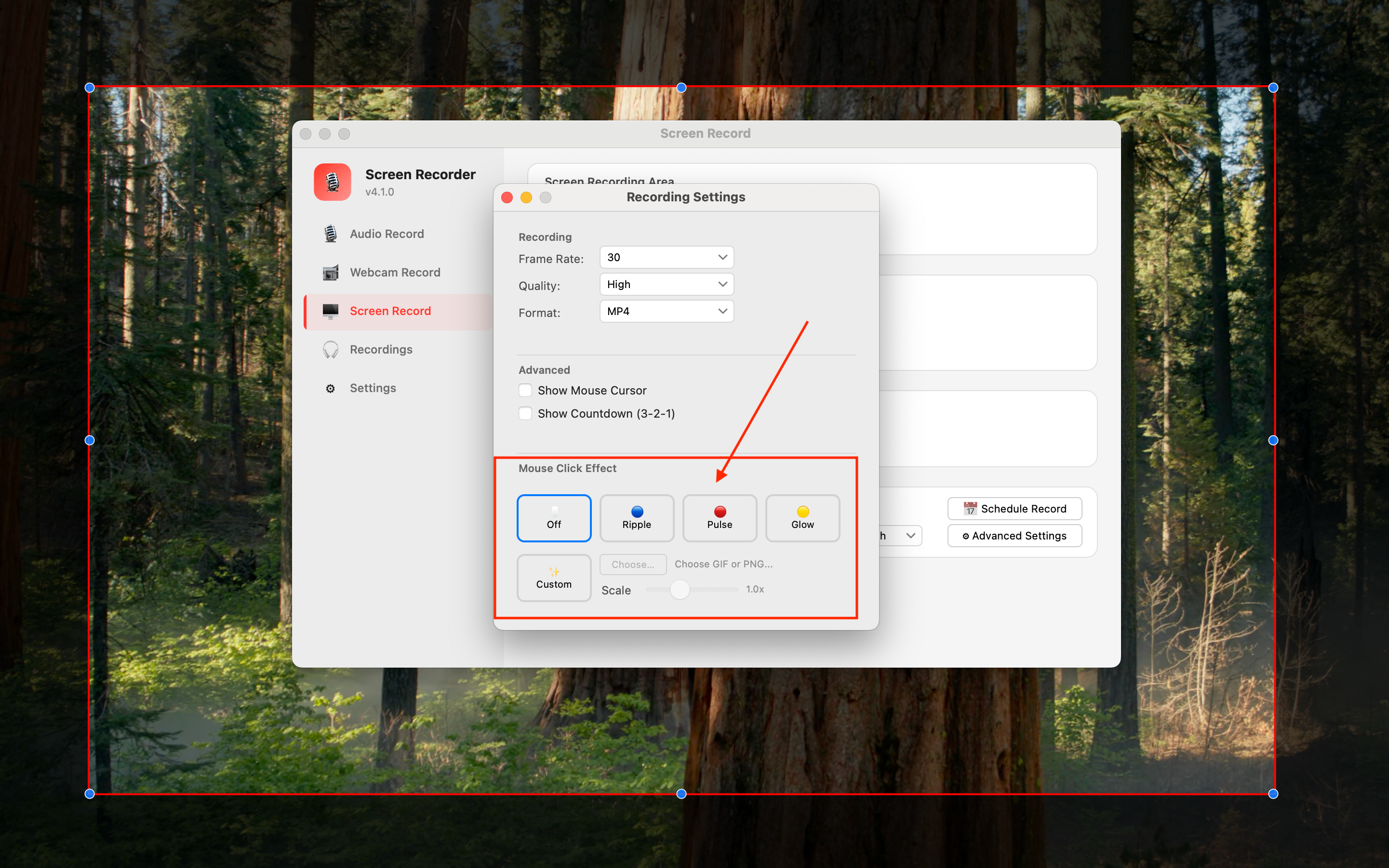
The webcam overlay puts your face in the corner. Standard stuff for courses and demos. Drag it wherever, make it bigger or smaller, turn it off mid-recording if you want.
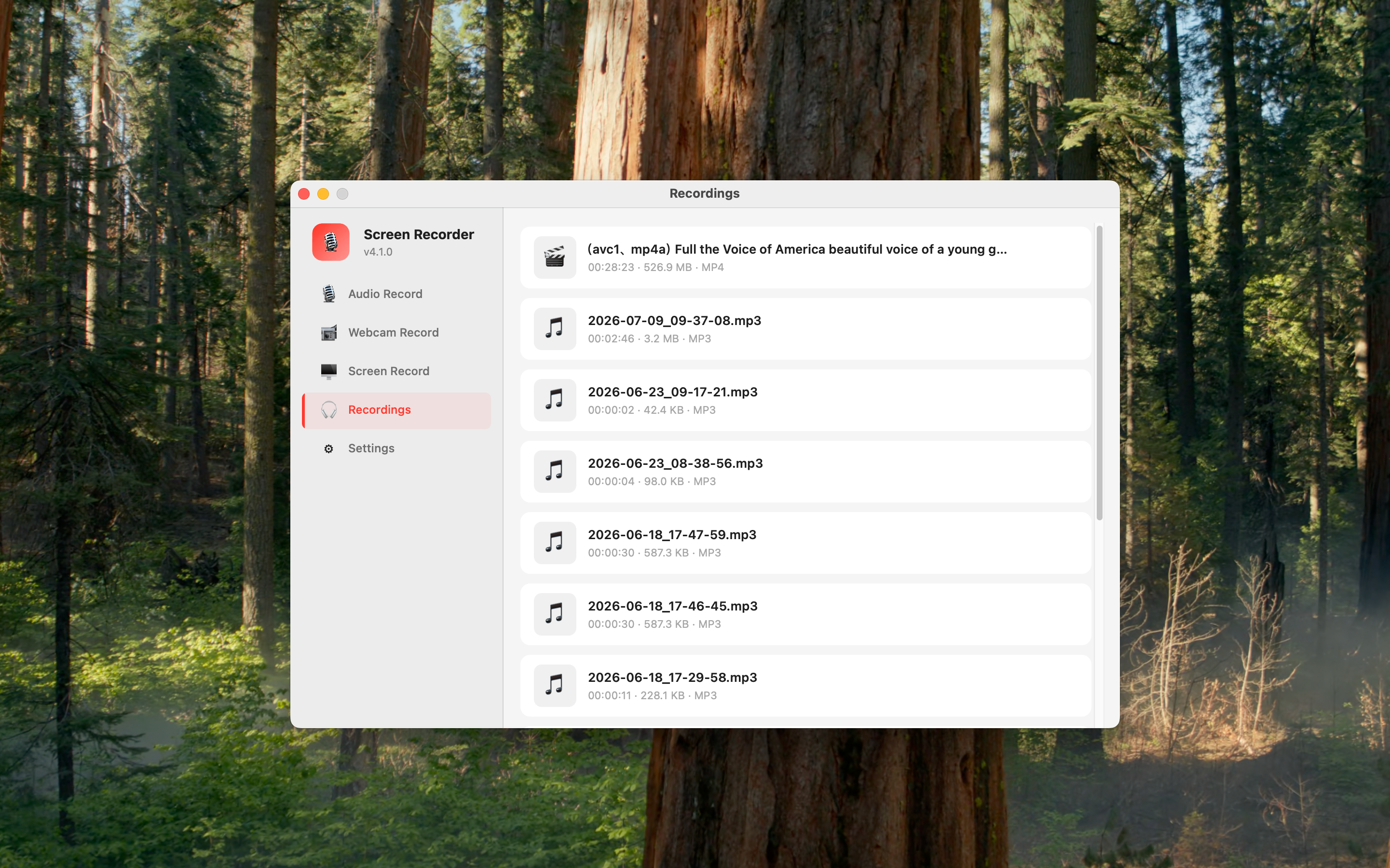
And when you’re done? Your recordings don’t end up scattered across random folders. There’s a built-in library — card view, inline playback, one click to jump to the file in Finder.
3. Recording a Podcast, Interview, or Meeting
QuickTime records your mic just fine. But that’s all it does.
Want to capture the other person’s voice from a remote call? The audio from a webinar? Whatever’s playing in your browser? Can’t do it. Output format? .m4a — take it or leave it. Sample rate? Stereo or mono? Whatever macOS decided to set last time you opened System Preferences. You don’t get a say.
With Yfli Screen Recorder, you do:
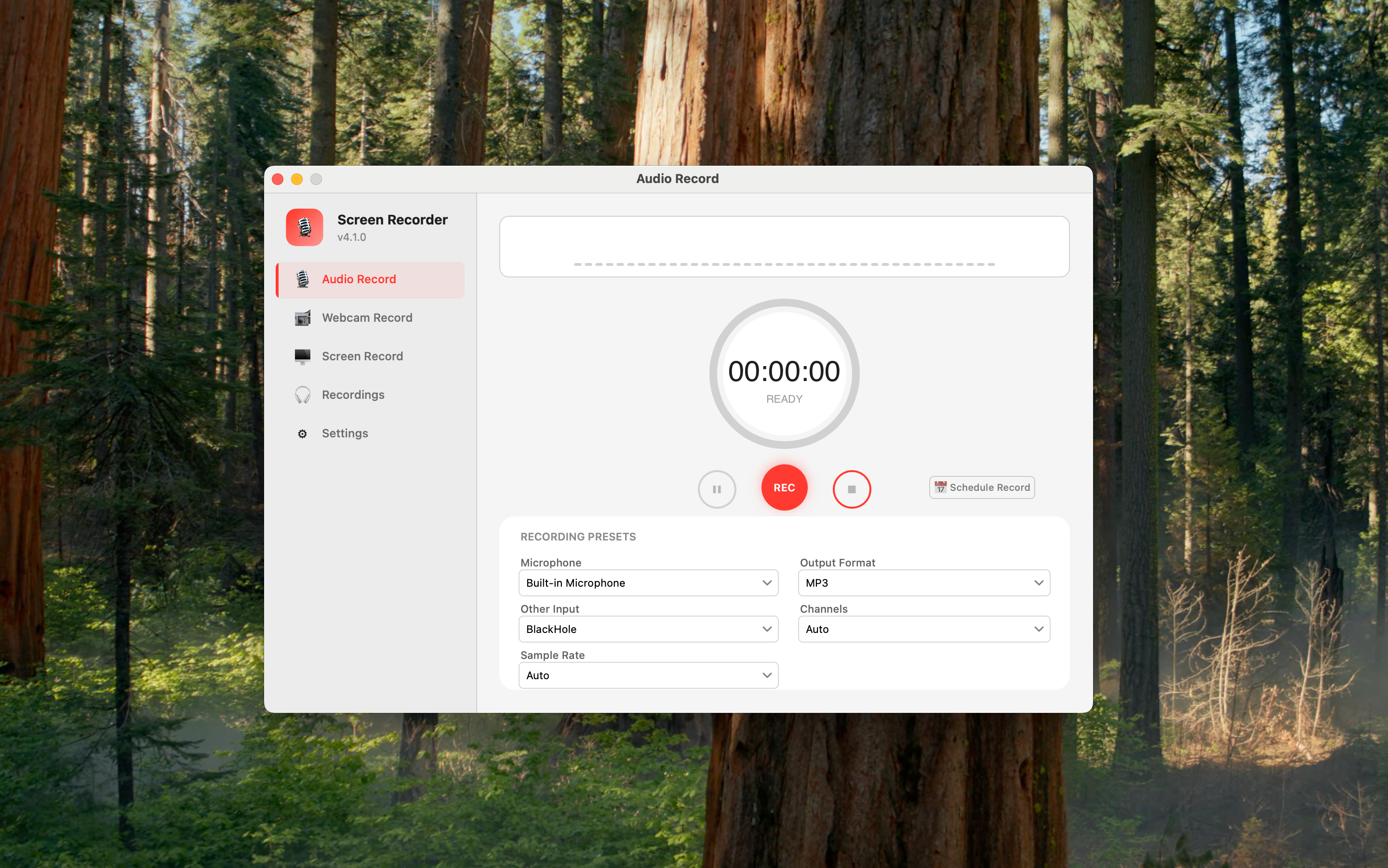
- Sample rate & channels are yours to pick. 44100 Hz if it’s just voice, 48000 Hz for video-standard audio, 96000 Hz if you want headroom for editing. Mono for a solo recording, Stereo for music or multi-person stuff. No guesswork, no fixing it later.
- Any mic works. Built-in, USB headset, an XLR interface — plug it in, it shows up.
- System audio? Grab it with BlackHole. It’s a free, open-source virtual driver. Install it once, select it under Other Input, and now you’re capturing system sound alongside your mic. Remote interviews, meeting audio, browser tabs — all on one track.
- Everything syncs clean. Screen + mic + system audio all land in one MP4 file. No aligning tracks afterward.
4. Recording Something When You're Not There
Here’s a scenario QuickTime doesn’t even pretend to handle: you need to record something, but you won’t be at your desk.
Maybe it’s a live training session at 2 PM. A webinar you can’t attend live. A meeting where you don’t have recording permission in Zoom. You know when it starts and when it ends — you just can’t be the one to press the button.
That’s what Scheduled Recording is for:
- Pick a start time → it kicks off automatically
- Set an end time or duration → it stops on its own
- Works in the background, no need to keep the app front and center
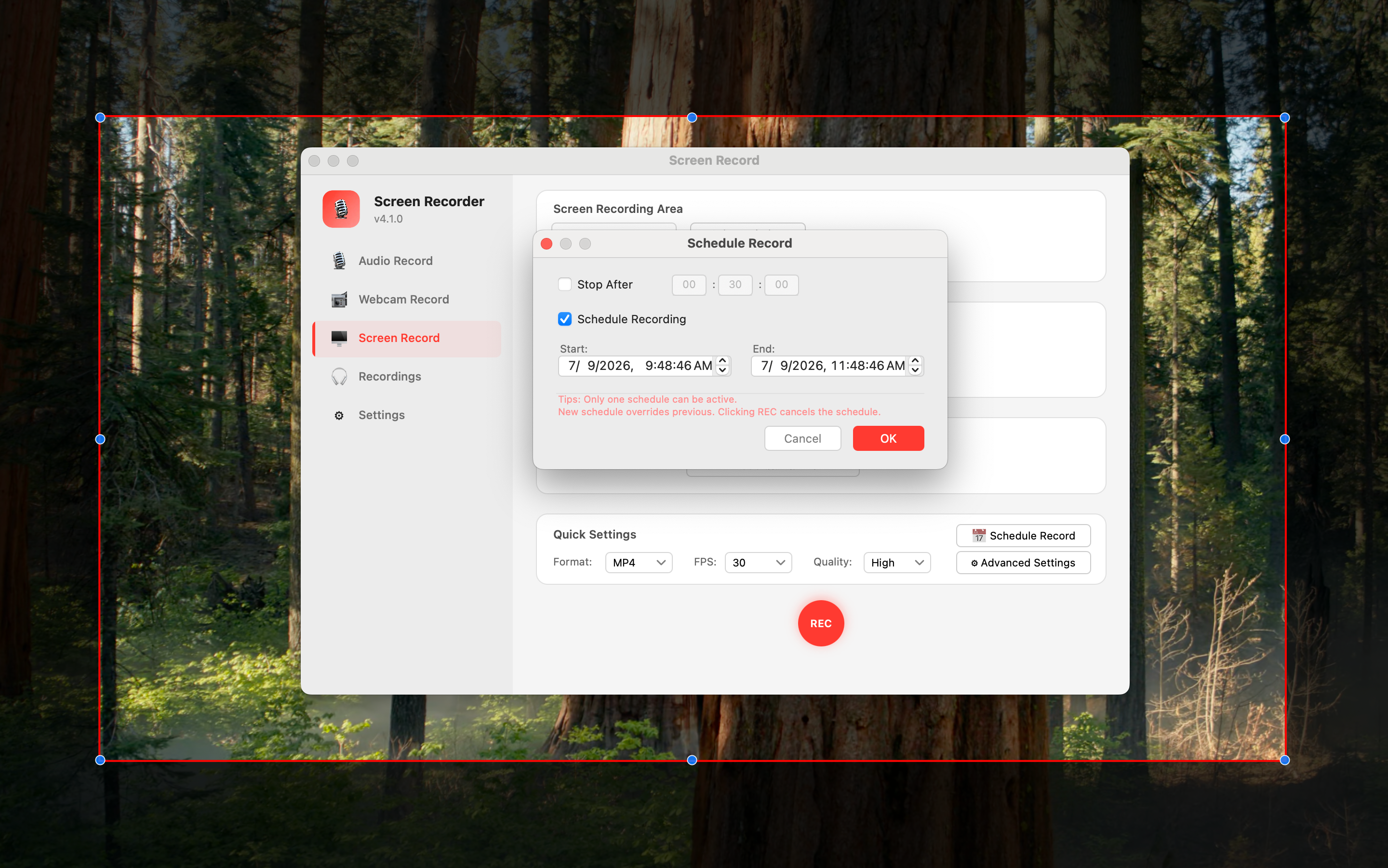
So that online training from 2:00 to 3:30? Set it once, and it records whether you’re at your desk, grabbing coffee, or in another meeting entirely.
5. What's Free and What's Not
You know the drill with Mac apps — the free version lets you record for 30 seconds, which isn’t even enough to figure out if you like the thing.
We went a different way:
Free, for real
| Feature | Limit |
|---|---|
| Screen recording | ❌ No time cap |
| Microphone recording | ❌ No time cap |
| Annotations (rectangles, arrows, text, freehand) | ❌ Use them all you want |
| Webcam overlay | ❌ All yours |
Pro Features
Extra export presets, premium quality settings, and more — available as an in-app purchase if you need them. If not, what you get for free already covers a lot.
6. So… Do You Actually Need It?
| How you use your Mac | Is QuickTime enough? | What we’d suggest |
|---|---|---|
| The occasional quick screen grab | ✅ Yeah | Stick with QuickTime |
| Regular tutorials or product demos | ❌ Nope | Yfli Screen Recorder — annotations + mouse effects + webcam |
| Podcasts, interviews, meetings you want to save | ❌ Nope | Audio controls + system audio capture |
| Recording courses or sessions on a schedule | ❌ Nope | Scheduled Recording will save you |
| QuickTime is a media player that happens to have a record button. Yfli Screen Recorder was built for one thing — recording. And you can feel the difference about five minutes in. |
Ready to Try Yfli Screen Recorder?
Free download on the Mac App Store. No account required, no ads, no watermark.
Linda Ye
Product maker & writer at Yfli. Focused on crafting the best screen and audio recording experience on macOS.