
How to Record Screen with Webcam on Mac — Complete Guide
Learn how to record your screen and webcam simultaneously on Mac. Step-by-step tutorial with Yfli Screen Recorder for picture-in-picture webcam overlay in tutorials, presentations, and demos.
If you’ve ever watched a tutorial where the creator’s face is in the corner of the screen, you know how much more engaging it feels compared to a faceless screencast. Adding a webcam overlay is one of those small things that makes a big difference.
The good news? It’s dead simple on Mac. You don’t need OBS, you don’t need to mess with scenes and sources. Just an app that does screen + webcam in one click.
Step 1: Open Yfli Screen Recorder
We built Yfli Screen Recorder to handle this exact thing — screen recording with picture-in-picture webcam, no fuss. 【Download Yfli Screen Recorder →】
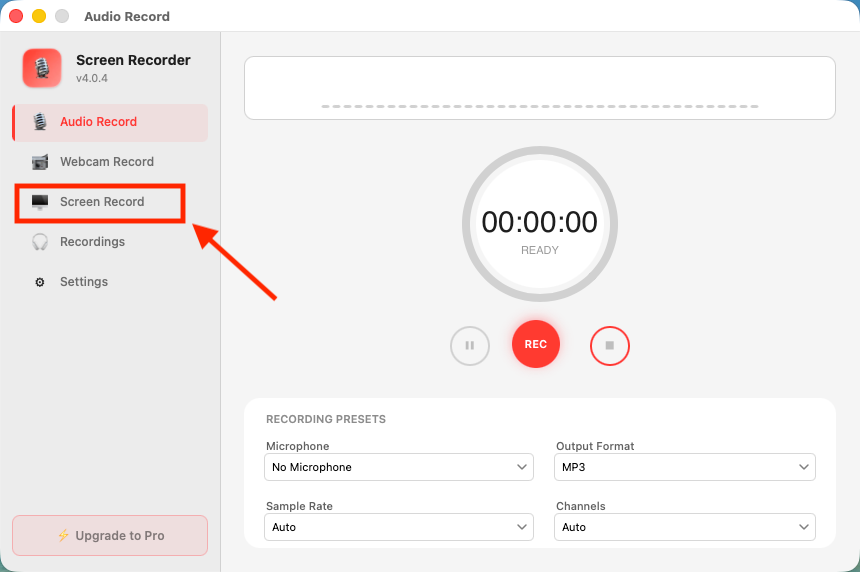
Launch it from your Applications folder, then click Screen Record on the left sidebar to switch to the recording module.
Step 2: Enable Webcam Overlay
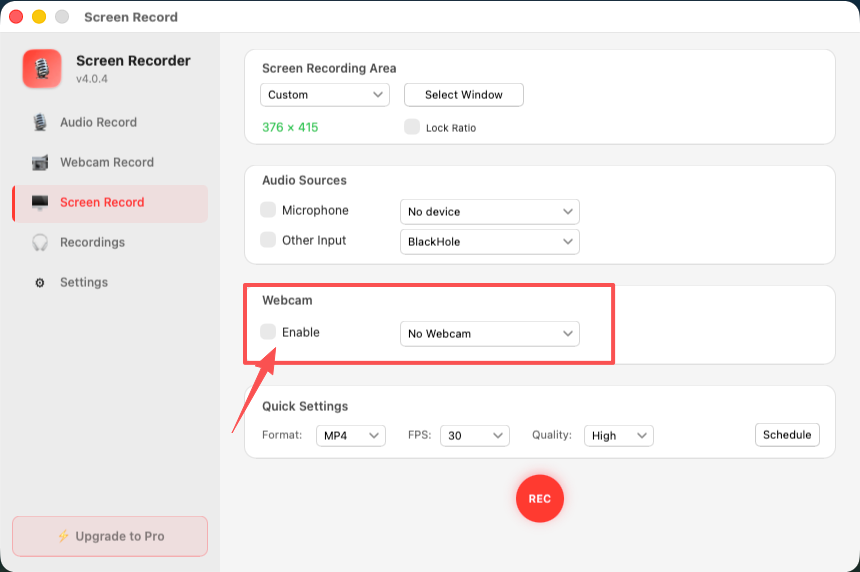
Click the webcam toggle. That’s it — your camera feed pops up as a little window you can drag around. A few things worth tweaking:
- Put it where it won’t block the important stuff. Bottom-right usually works best
- Size it down so it’s visible but not distracting. Think FaceTime thumbnail, not full-screen selfie
- If you use an external camera, it’ll pick that up automatically. No extra config needed
Step 3: Configure Audio & Screen
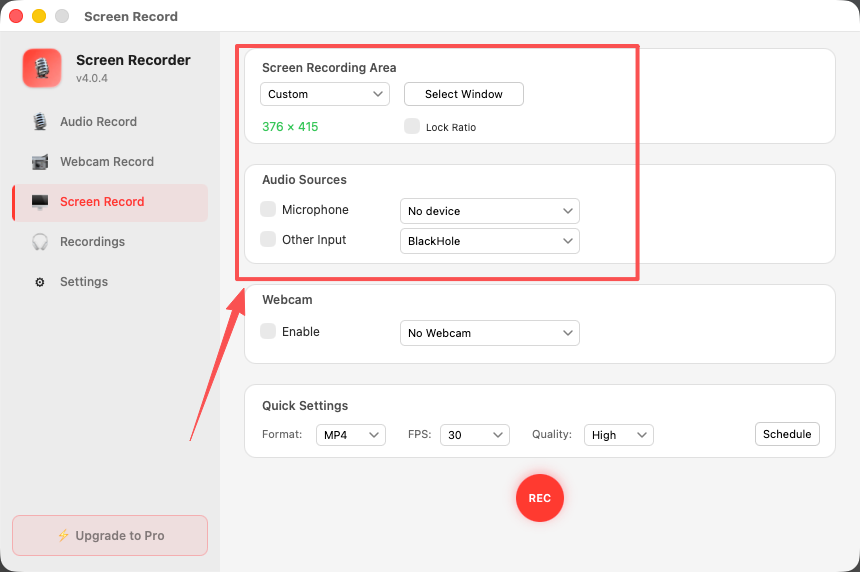
Pick what to capture — full screen, a single window, or drag out a custom area. Then choose your mic. The built-in Mac mic is fine for most cases, but if you have a USB mic plugged in, it’ll show up in the dropdown.
Need system audio too? Grab BlackHole (it’s free), install it, and select it under Other Input. Now you’re capturing both your voice and whatever’s playing on your Mac.
Step 4: Hit Record
You’re all set. Click Record — a short countdown gives you a moment to breathe — and go do your thing. The webcam stays pinned on top the whole time.
When you’re done, hit stop. The video saves straight to your Movies folder as an MP4, webcam overlay baked right in. No export step, no rendering wait.
Quick Tips
- Light is everything. Face a window. A well-lit face on a mediocre camera beats a poorly-lit face on an expensive one
- Glance at the camera. When you’re explaining something important, look at the lens — it reads as eye contact to your viewer
- Do a test clip first. 10 seconds to check your levels and framing saves you re-recording a 20-minute video
- Close the clutter. Slack, email, random menu bar icons — mute notifications or you’ll regret it in playback
Ready to Try Yfli Screen Recorder?
Free download on the Mac App Store. No account required, no ads, no watermark.
Yfli
Creator of Yfli Screen Recorder. Passionate about building great macOS tools that are simple, powerful, and beautiful. Writing about screen recording, macOS tips, and software development.