

QuickTime Is a Player, Not a Recorder — What to Use on Mac Instead
QuickTime's full name tells you everything: it's QuickTime Player, not QuickTime Recorder. Recording is a bonus feature bolted onto a media player. Here's what that distinction costs you in real workflows.
Search “how to record on Mac” and the first answer you’ll get is almost always the same: “Just use QuickTime.”
But here’s the thing — look at the full name. It’s called QuickTime Player.
Not QuickTime Recorder. Apple never called it that. Recording is a bonus feature they tacked onto a media player. It happens to have a record button. That’s not the same thing as being a recording tool.
And that gap between “can technically record” and “built for recording”? It gets expensive fast. Not in dollars — in your time. By the third podcast episode or fifth tutorial video, those little annoyances add up to real hours.
This isn’t a spec comparison. This is about what it actually costs you to use the wrong tool.
Cost #1: One Format, No Choice — An Extra Hour in Post Every Time
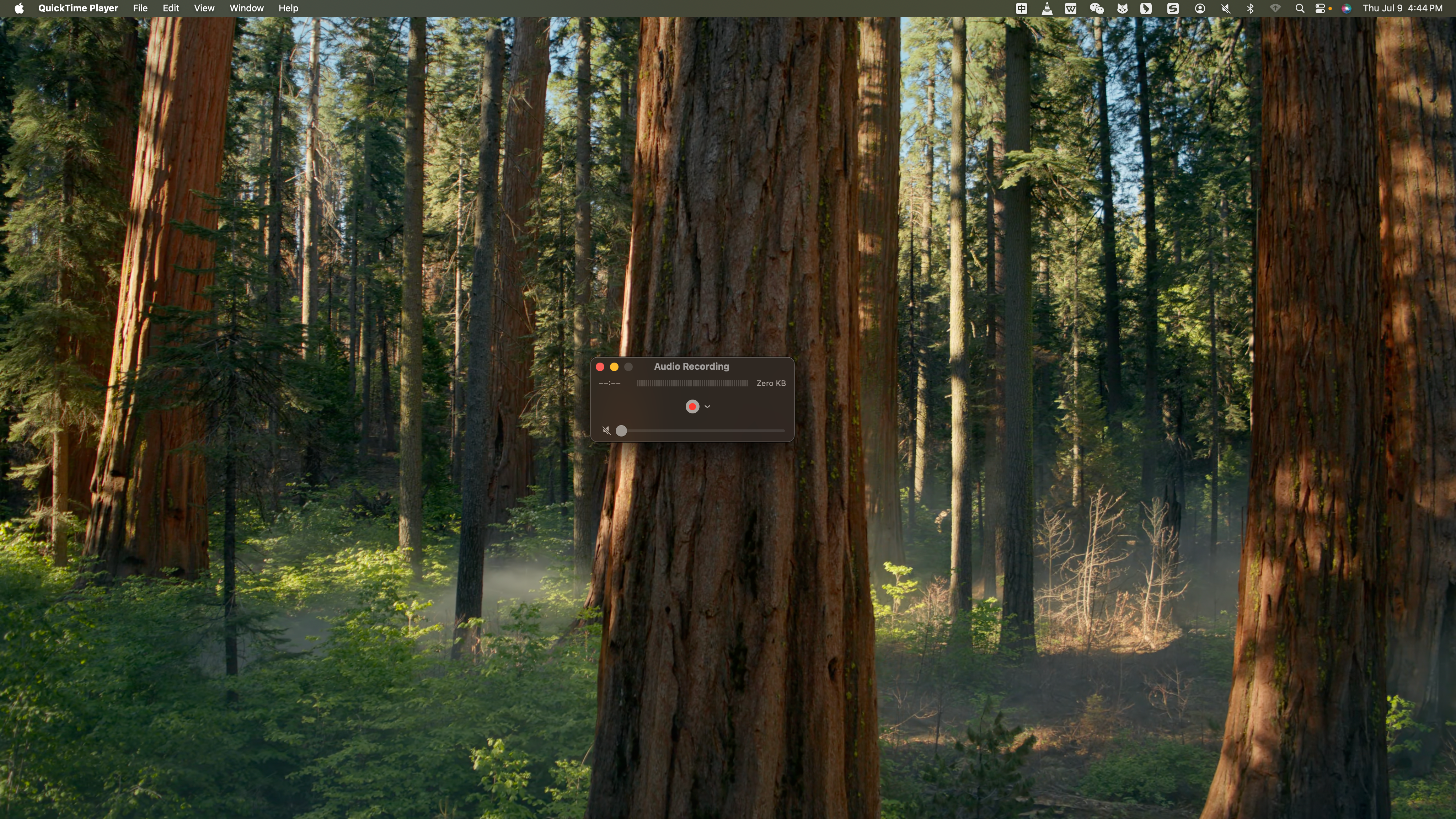
QuickTime gives you exactly one output format: MOV with H.264 encoding. That’s it. No menu, no dropdown, no options.
If the platform you’re uploading to only accepts MP4, your client’s editing workflow expects a different codec, or you just need a smaller file for email — too bad. You’re opening a converter, dragging the file in, picking a format, exporting, and deleting the original. Every. Single. Time.
Do it once or twice? Fine. Do it twice a week for a year? That’s hundreds of cycles of “open converter → drag → convert → delete original.”
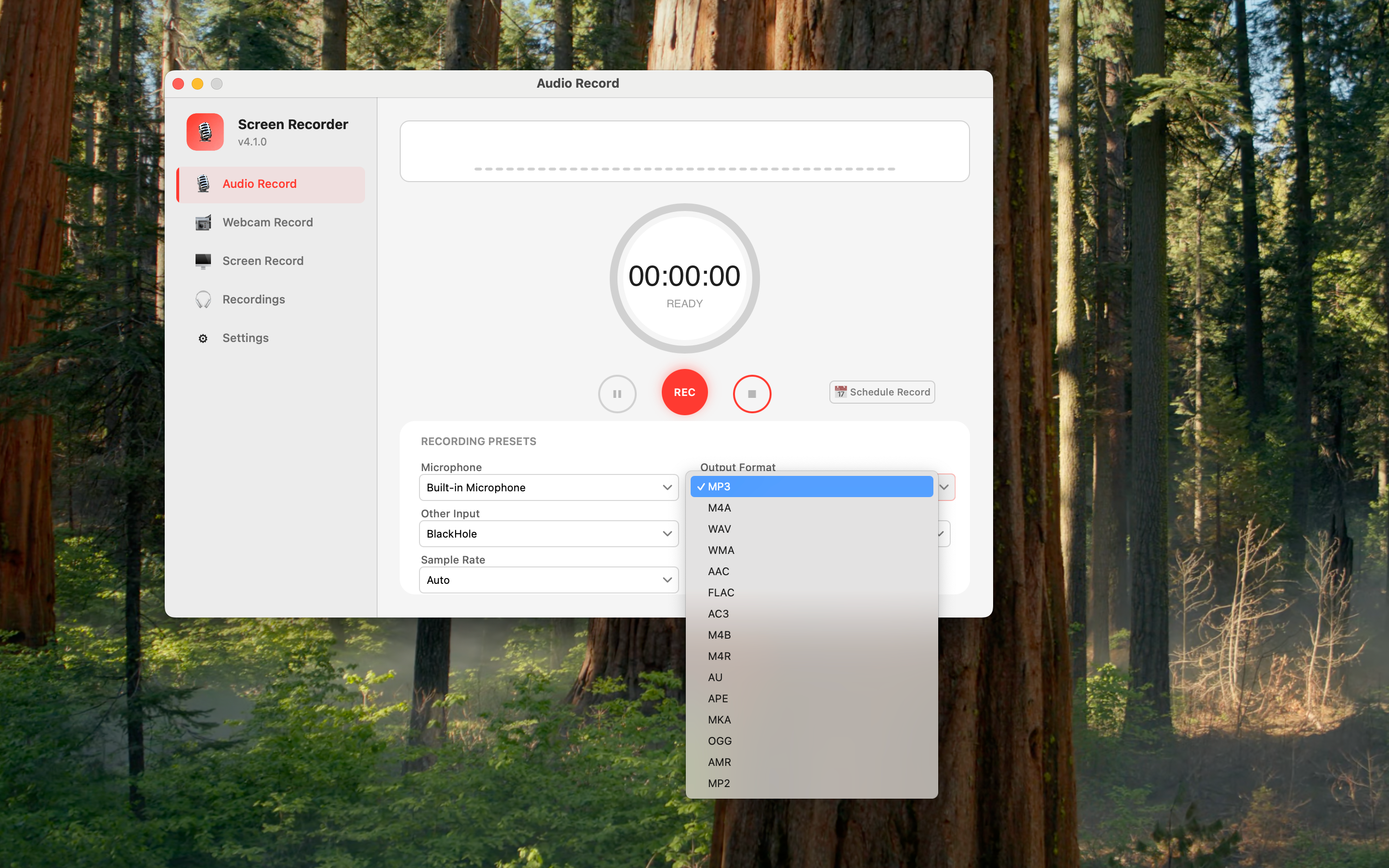
Yfli Screen Recorder flips this: pick your format before you record. MP4 (H.264/H.265), MOV, M4V — 15+ format variants, plus optimized presets for web, email, and social. Hit stop, and the file is already in the format you need. No converter. No extra step.
Cost #2: Quality Is Whatever the System Decides
QuickTime doesn’t let you touch recording parameters. What frame rate are you getting? No idea. Bitrate? Unknown. Resolution? Whatever it defaults to.
For a quick voice memo, fine. But for a tutorial, product demo, or client deliverable, quality is the difference between “professional” and “did they record this on a phone?” 30fps works for casual stuff, 60fps keeps motion smooth. 1080p is fine for sharing, 4K gives you room to crop in post. QuickTime gives you none of these choices.
Yfli Screen Recorder puts every quality dial in front of you. You don’t need to understand video encoding — you just need to see the options and pick what makes sense.
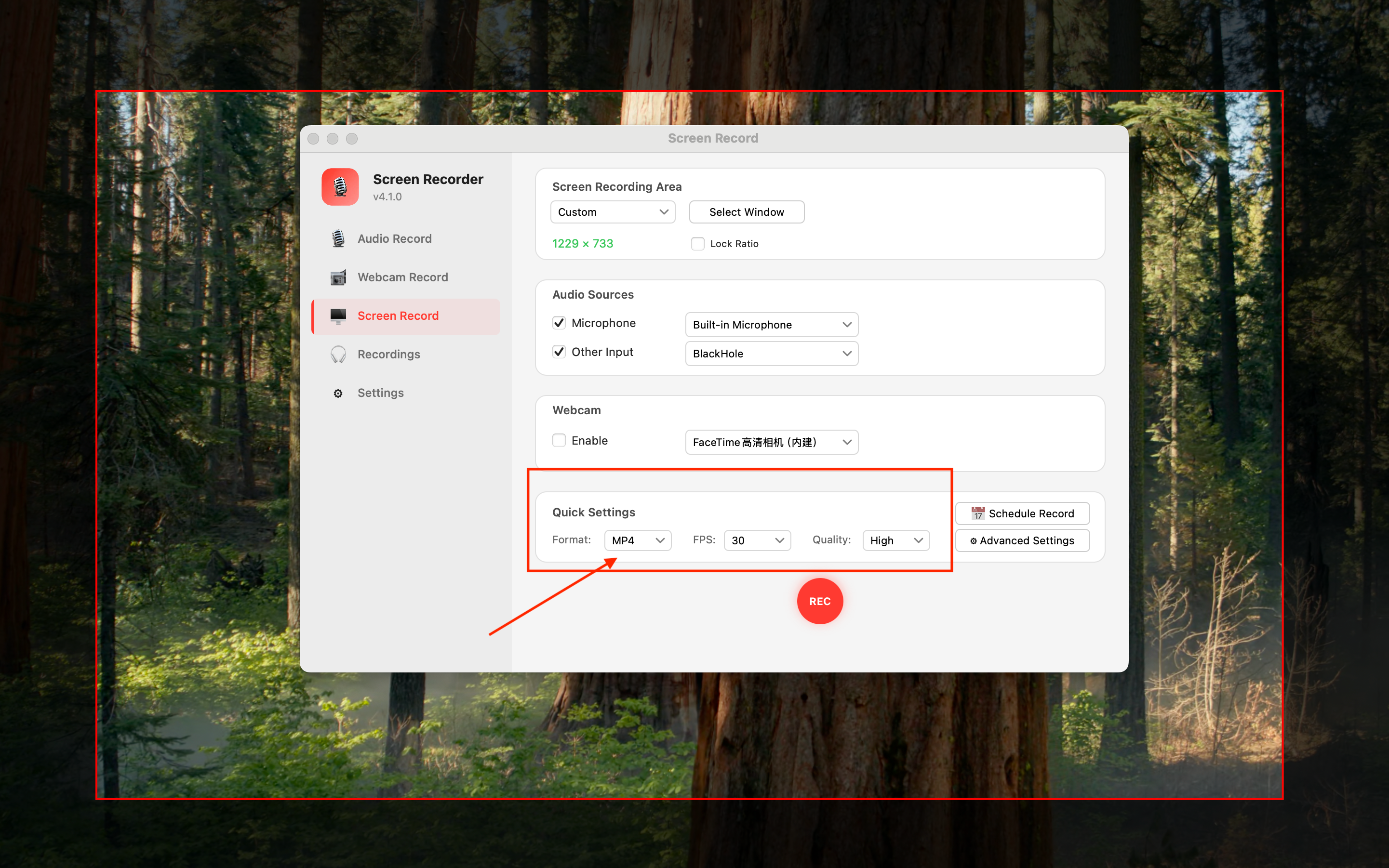
Hardware-accelerated encoding on Apple Silicon means smooth 60fps 4K capture without dropped frames.
Cost #3: You Can't Control Your Audio
QuickTime records audio through your mic. That’s all you get. Sample rate? The system decides. Stereo or mono? Whatever macOS felt like last time you opened System Preferences.
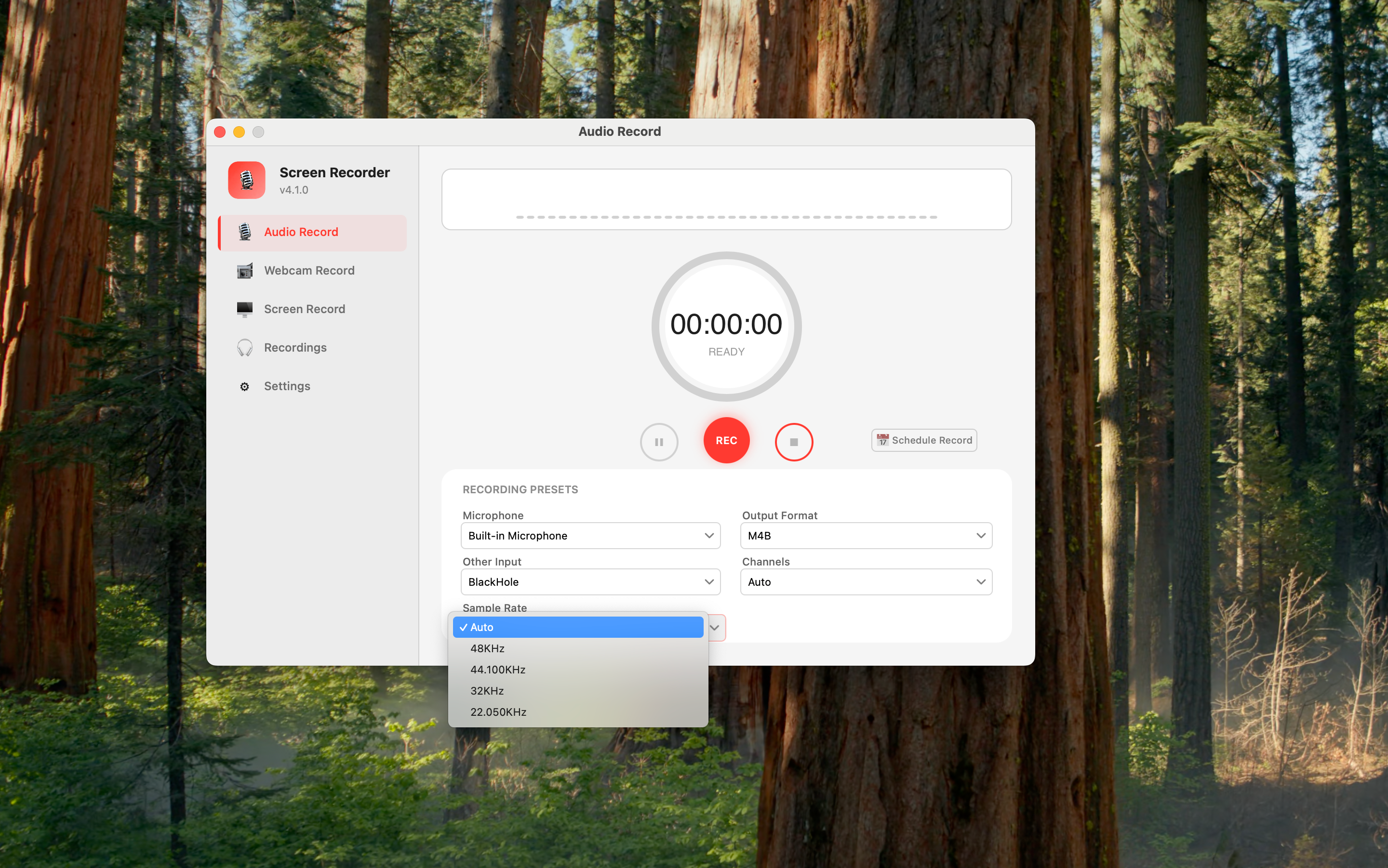
For a voice note, fine. For a podcast, interview, music recording, or tutorial voiceover — sample rate directly affects quality. 44100 Hz is fine for everyday, 48000 Hz is the video industry standard, and 96000 Hz gives you editing headroom. Channel choice matters too: Mono for a solo narration, Stereo when you’re recording music or a multi-person discussion.
Yfli Screen Recorder lets you set both before you hit record. You don’t need to be an audio engineer — you just need to see the options and choose.
Cost #4: You Can Record, But You Can't Communicate
Here’s the workflow QuickTime forces on anyone making tutorials:
- Record the screen
- Open a separate app to add arrows, highlights, and annotations
- Export again
Step 2 is always where things grind to a halt. Because you can’t draw arrows to point at buttons, circle important areas, or highlight form fields while recording. Your viewer sees a clean screen recording and has to guess where to look. So you fix it in post. Every time.
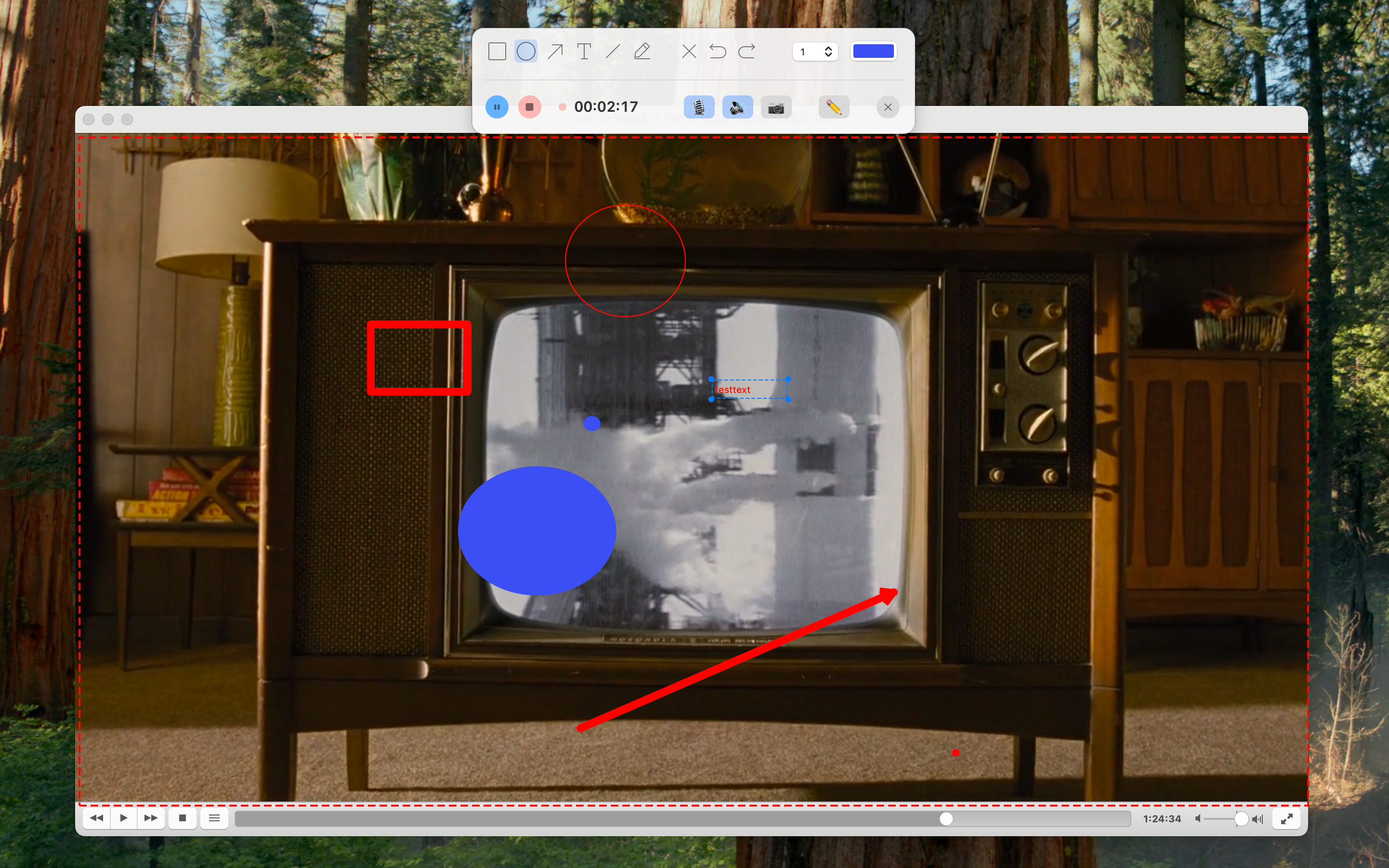
Yfli Screen Recorder builds annotations into the recording itself: rectangles, circles, arrows, text, freehand drawing — all available while you record. They live on a separate layer, so your original footage stays untouched. Undo and redo anytime.
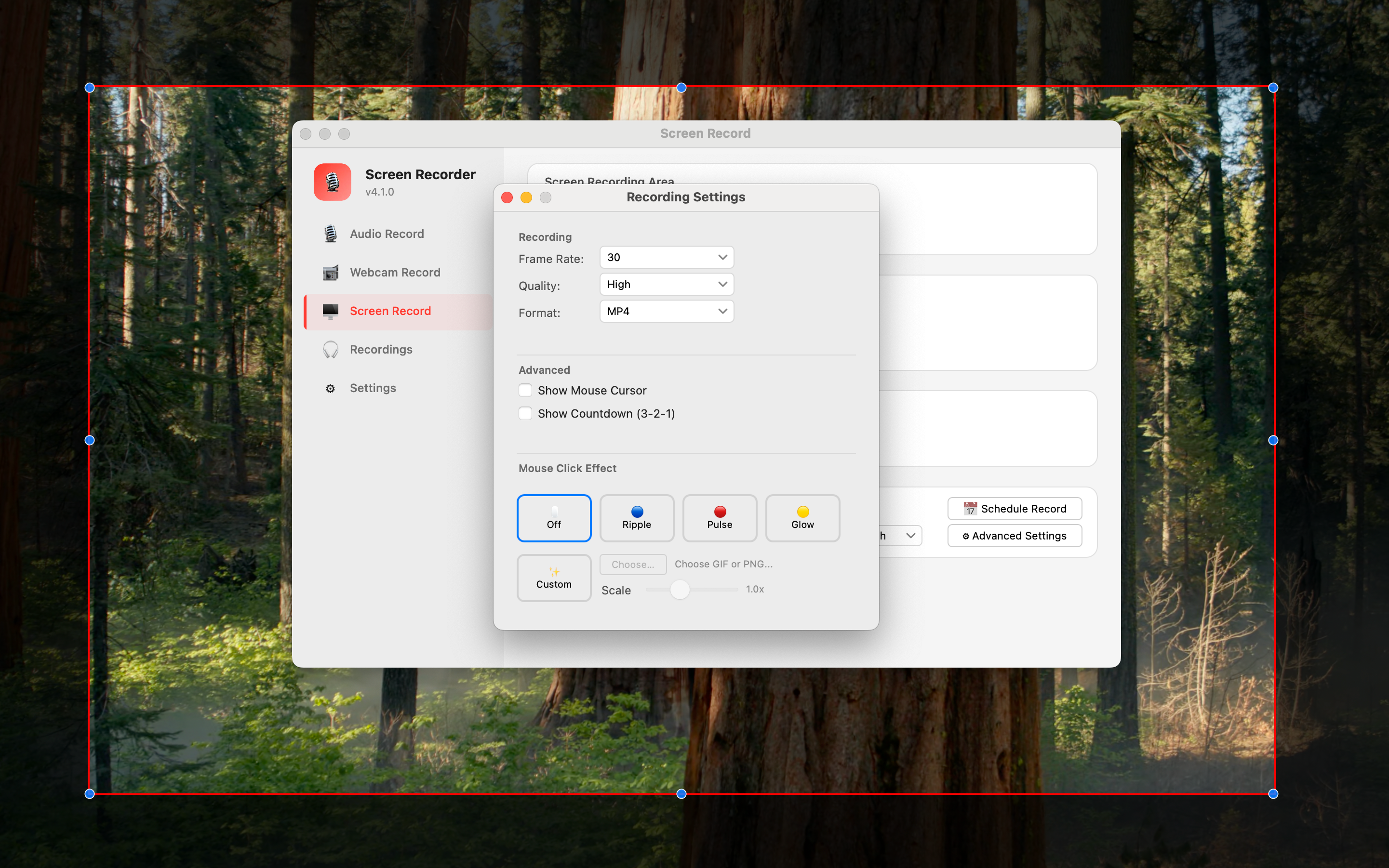
Then there’s something QuickTime can’t touch: mouse click effects. Anyone who’s made tutorial videos knows the #1 viewer question: “What did you just click?” Ripple, pulse, glow — or upload your own GIF. One setting, and every click becomes obvious.
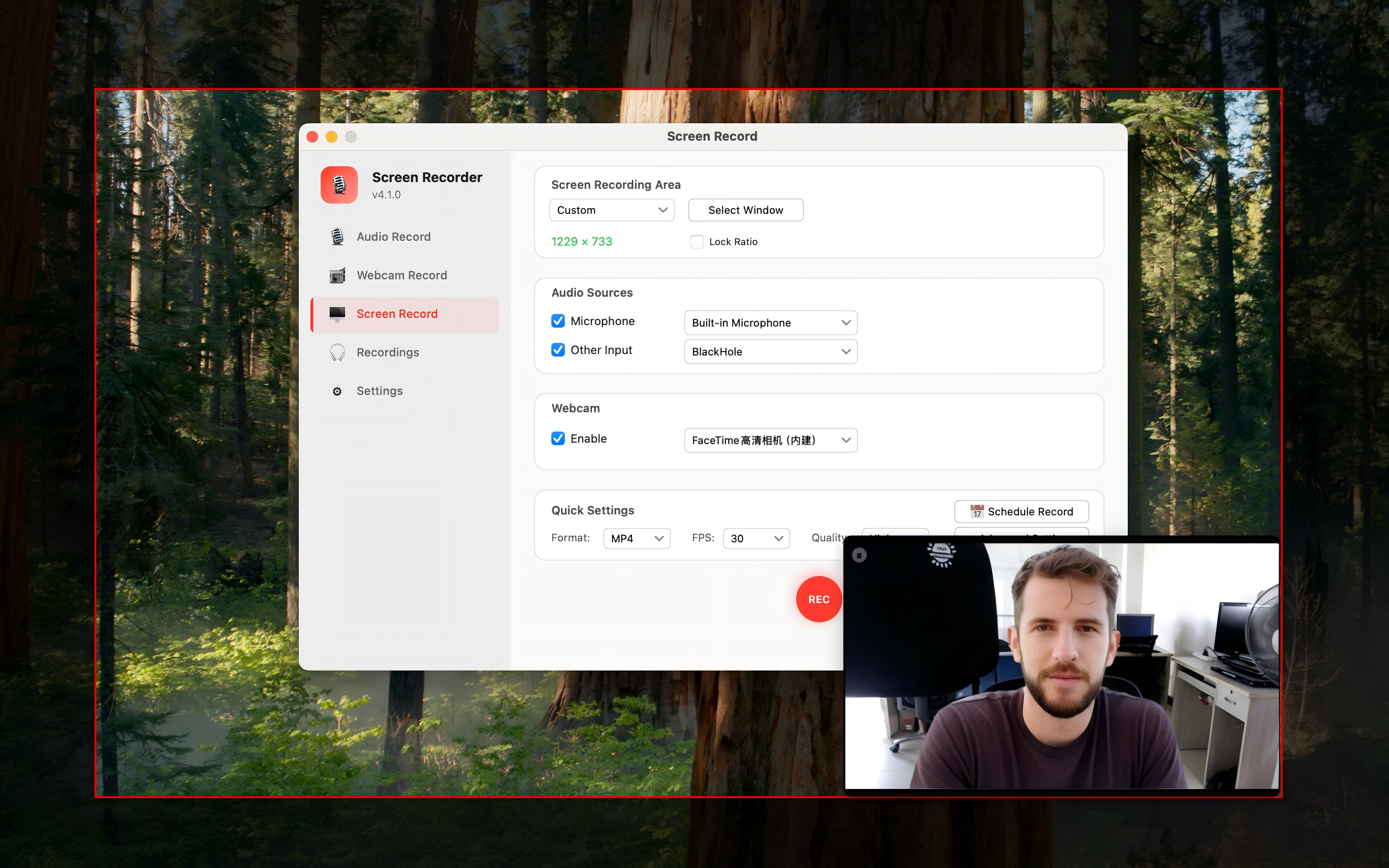
And webcam overlay — your face in the corner. Standard for video courses and demos. Drag it anywhere, resize it, toggle it on and off mid-recording.
Cost #5: Your Files Are Scattered Everywhere
Where did QuickTime save your last recording? It goes wherever you saved the one before. If you changed folders two weeks ago, it might be sitting somewhere you’ve already forgotten about.
After a while, Finder isn’t your recording library — it’s a scavenger hunt. No preview. No quick playback. Just filenames and hope.
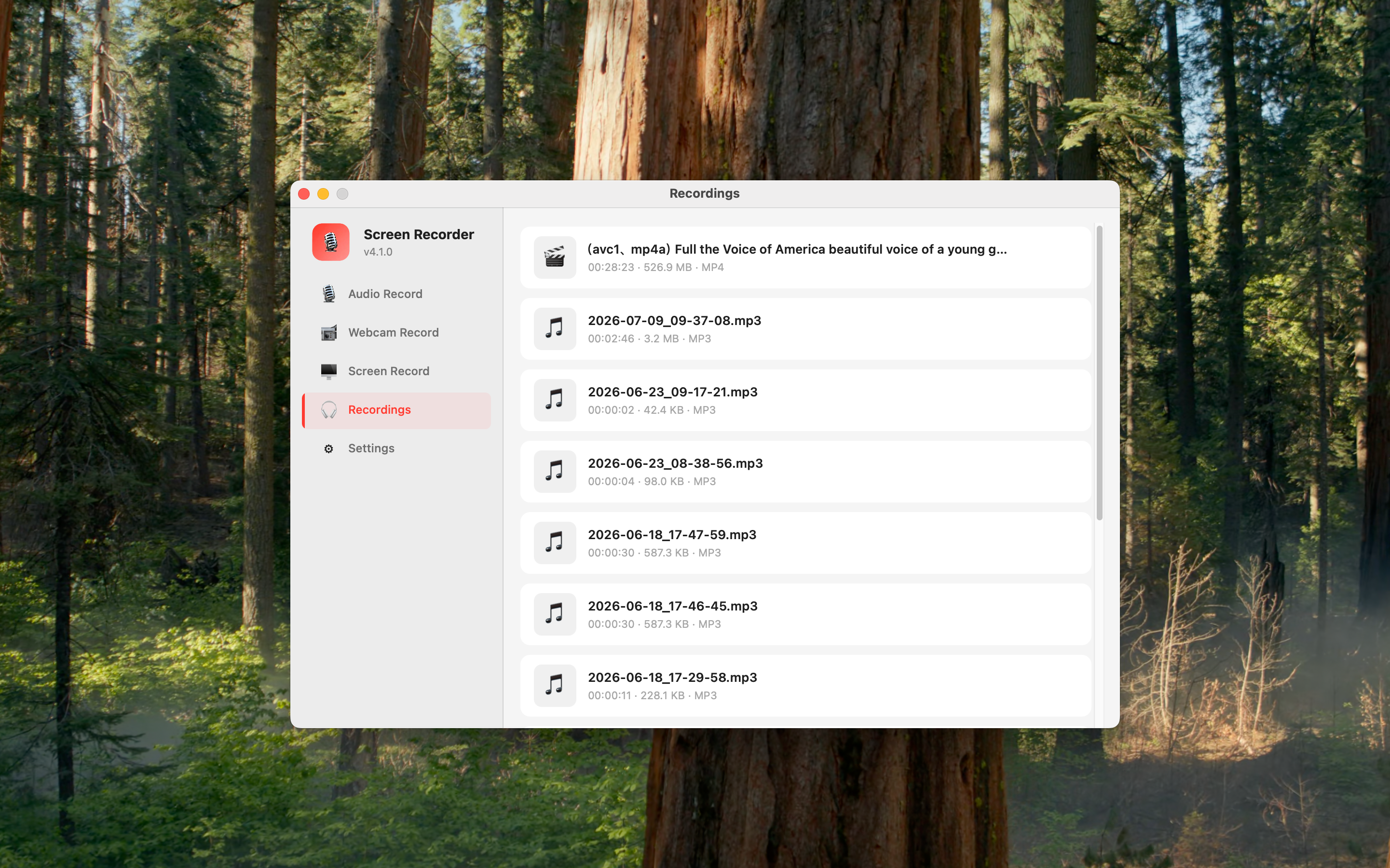
Yfli Screen Recorder has a built-in recording manager: card view, inline playback, one click to reveal in Finder. You record, it’s there. No searching.
Cost #6: Nobody Cares If You Forgot to Press Record
There’s a whole category of recording QuickTime simply ignores: when you’re not at your desk but need to capture something.
Online training, webinars, remote meetings — the time is fixed, but you might not be free to manually start and stop. QuickTime’s solution? Be there, on time, and press the button.
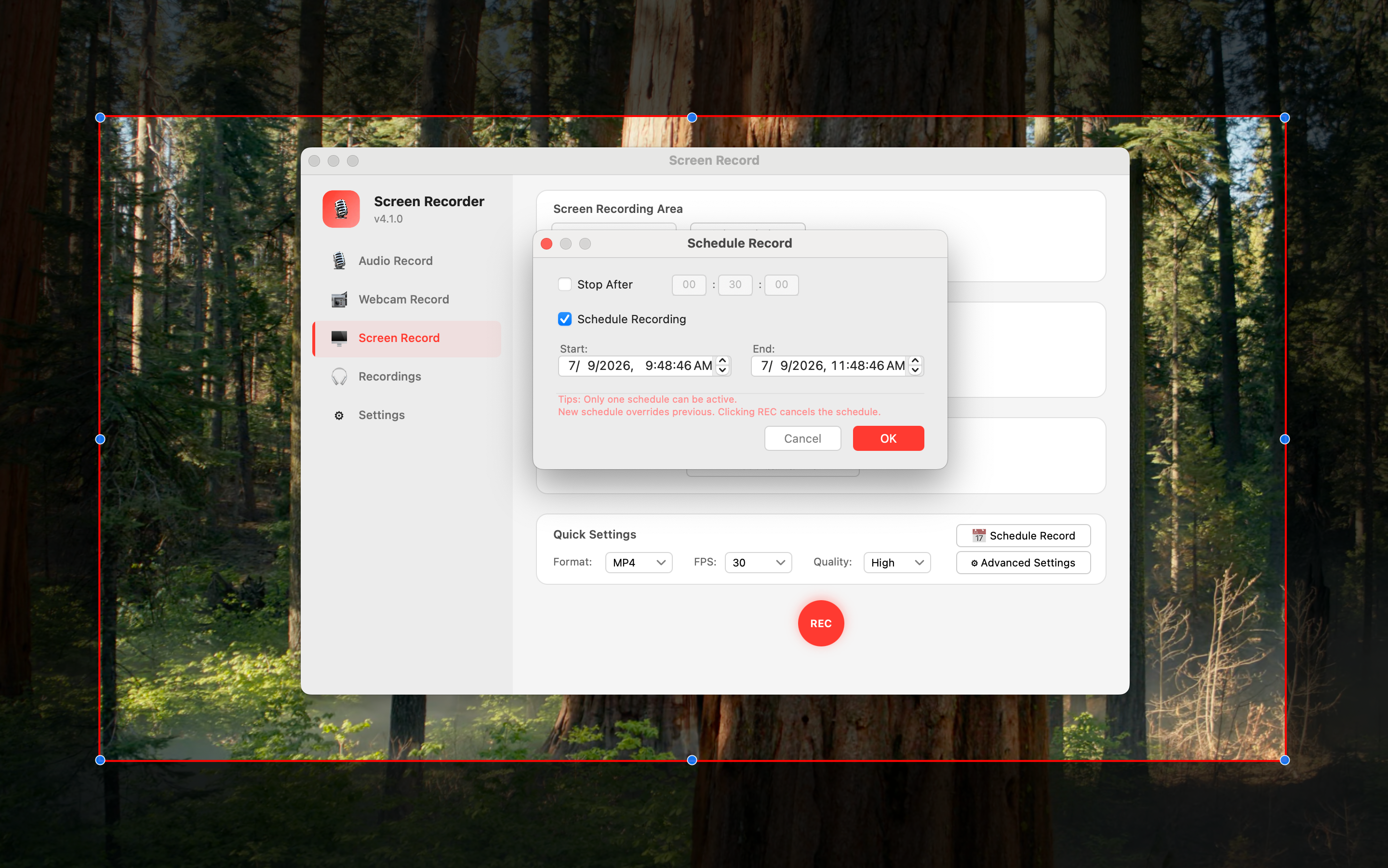
Yfli Screen Recorder’s Scheduled Recording handles this: set a start time and an end time. The app starts and stops automatically, even in the background.
The Real Problem Isn't QuickTime — It's the Category Mistake
Let’s go back to the title. QuickTime Player is a great player. Apple engineered it to play video smoothly and efficiently — that’s its core strength, and it does it well.
But recording? It does the bare minimum. “Can record” and “built for recording” are separated by an entire workflow: format presets, quality controls, audio settings, screen annotations, mouse effects, webcam overlay, scheduled capture, file management.
None of this is QuickTime’s “fault.” It was never designed to do these things. It’s like criticizing a Swiss Army knife for not being a chef’s knife — sure, it has a blade. But you wouldn’t prep a dinner service with it.
The real question is: when someone tells you “a Swiss Army knife is good enough,” you should ask — good enough by whose standards?
The Only Question That Matters
If you had to record one tutorial, podcast, or demo every week for the next year — would you stick with QuickTime?
If the answer is “yeah, no big deal” — then QuickTime is genuinely fine for you.
If the question made you pause — Yfli Screen Recorder is free to download, with no time limits on core recording. 【Download Yfli Screen Recorder →】
Ready to Try Yfli Screen Recorder?
Free download on the Mac App Store. No account required, no ads, no watermark.
Linda Ye
Product maker & writer at Yfli. Focused on crafting the best screen and audio recording experience on macOS.