
Transcribe Audio to Text Without Uploading — Private AI Guide for Mac
Your Mac can run powerful AI speech recognition entirely offline. No upload, no cloud, no account required. Step-by-step guide to transcribing interviews, meetings, and recordings privately using on-device AI.
You hit stop on a one-hour interview. Now you need a transcript — every word, timestamped, ready to share. You open Google and start typing: “free audio to text converter.”
The top results all want you to upload your file to a server. Somewhere, someone else’s computer will listen to your client call, your therapy session, your startup pitch.
For many people, that’s not okay. And it doesn’t have to be.
Your Mac can run powerful AI speech recognition entirely offline. No upload. No cloud. No account required. Here’s how.
Why People Are Moving Away from Cloud Transcription
Cloud transcription services are convenient. You drag a file, click convert, and get text back. But three things are driving people toward offline solutions:
- Privacy regulations. GDPR, HIPAA, and client NDAs make sending audio to third-party servers a legal risk.
- Sensitive content. Journalists protecting sources, therapists handling sessions, lawyers reviewing depositions — these recordings should never leave the device.
- No internet, no service. Cloud tools stop working the moment your connection drops. Offline tools keep going.
The good news: AI speech recognition has gotten good enough to run entirely on your Mac, using nothing but the hardware already in front of you.
What Makes Offline AI Transcription Possible?
Until recently, accurate speech-to-text required massive server farms. That changed with open-source AI models — specifically OpenAI’s Whisper, a neural network trained on 680,000 hours of multilingual audio.
The key breakthrough: a project called whisper.cpp ported this model to run efficiently on consumer hardware. On a Mac with Apple Silicon, it uses the Neural Engine. On an Intel Mac, it runs on the CPU — and with the right configuration, it’s fast enough for real work. Either way, your audio never leaves the machine.
This is the same class of technology that powers cloud transcription — but packaged to run where you control it. (If you’re curious how we evaluated cloud vs. on-device approaches before landing on offline Whisper, here’s the full architecture analysis.)
How to Transcribe Privately on Mac: Step by Step
Option 1: Use a Free Offline App (No Setup Required)
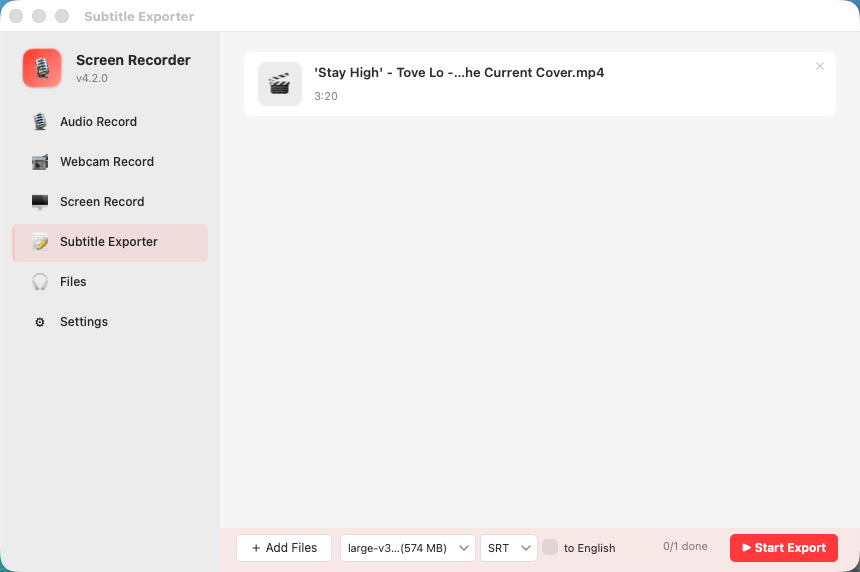
The easiest way for most people is an app that bundles the AI model and handles everything automatically. Here’s the workflow with Yfli Screen Recorder (free download, works offline):
- Download and open Yfli Screen Recorder
- Click the Subtitle Exporter tab
- Drag your audio or video file into the window
- Pick an AI model (tiny for speed, larger ones for accuracy)
- Pick your output format — SRT, VTT, TXT, or LRC
- Click Start Export
The AI runs entirely on your Mac. A one-hour recording takes about 3 minutes with the smallest model on Apple Silicon. No upload, no account, no internet required.
The output is a standard SRT subtitle file — you can open it in any video player, upload it to YouTube, or share it with your team.
Option 2: Run whisper.cpp from Terminal
For developers and power users:
# Install whisper.cpp
git clone https://github.com/ggerganov/whisper.cpp
cd whisper.cpp && make

# Download a model (tiny is 74MB, fits almost anywhere)
bash ./models/download-ggml-model.sh tiny

# Transcribe a file
./main -m models/ggml-tiny.bin -f recording.m4a -osrt -l auto
This is what Yfli Screen Recorder uses under the hood, by the way. The app just wraps it in a friendlier interface with queue management, progress display, and format options.
Real-World Use Cases
- Journalists: Record an interview → export SRT → import into Descript or Premiere for editing. Source audio never touches a cloud server.
- Therapists & coaches: Session notes without sending client recordings to third-party AI services. HIPAA-friendly workflow.
- Lawyers: Deposition transcripts generated locally. No chain-of-custody concerns with cloud uploads.
- Students: Lecture recordings transcribed offline in the library or coffee shop, no Wi-Fi needed.
- Content creators: Generate subtitles for YouTube videos before uploading — the AI does the heavy lifting, you just review and publish.
A Quick Note on Accuracy vs Speed
AI transcription quality depends on the model you choose. Here’s a rough guide for a 60-minute English recording on an M1 Mac:
| Model | Speed | Accuracy | Best For |
|---|---|---|---|
| Tiny (74 MB) | ~3 min | Good for clear speech | Quick drafts, searchable notes |
| Small (466 MB) | ~10 min | Very good | Most use cases |
| Medium (1.4 GB) | ~40 min | Excellent | Final deliverables, broadcast |
For most people, Small hits the sweet spot. Medium is worth the wait when every word matters. You can switch between models anytime as long as they’re downloaded — no restrictions.
The Bottom Line
AI transcription no longer requires uploading your voice to someone else’s computer. If you own a Mac made in the last several years, you already have everything you need to run accurate, private speech-to-text locally.
The only question is whether you want to configure it from the terminal or just drag and drop.
Ready to Try Yfli Screen Recorder?
Free download on the Mac App Store. No account required, no ads, no watermark.
Yfli
Creator of Yfli Screen Recorder. Passionate about building great macOS tools that are simple, powerful, and beautiful. Writing about screen recording, macOS tips, and software development.