

Your AI Subtitles Have Errors — Here's How to Fix Them Fast
AI-generated subtitles aren't 100% accurate — and neither is any tool on the market. The difference between a frustrating workflow and a fast one isn't raw accuracy, it's how quickly you can correct the mistakes.
AI-generated subtitles are a game changer — until you notice the mistakes.
You ran your video through an AI subtitle exporter. It took a fraction of the time that manual transcription would have. But glancing through the file, you spot things like:
- Timestamps that drift off by half a second
- Missing lines where two people talked at once
- A technical term transcribed as something phonetically similar but completely wrong
These aren’t bugs. They’re inherent to how AI speech recognition works. Here’s why — and more importantly, how to fix them fast.
We built a subtitle editor into Yfli Screen Recorder specifically to solve this. The workflow below is what we use ourselves.
Why AI Subtitles Make Mistakes
All offline AI subtitle tools (including ours) use variations of OpenAI’s Whisper model. It’s remarkably accurate for a machine — typically 85–95% depending on audio quality. But it fails predictably in a few scenarios:
| Scenario | Why It Happens |
|---|---|
| Background noise | The model can’t separate speech from ambient sound |
| Multiple speakers | Overlapping dialogue confuses the voice activity detector |
| Accents & dialects | The training data skews toward American English |
| Technical jargon | Domain-specific vocabulary isn’t in the training set |
| Low-quality recordings | Compression artifacts degrade the audio features |
These aren’t problems you can “fix” by picking a larger model — though it helps. The real solution is a fast editing workflow.
The 2-Minute Fix Workflow
This is the workflow we designed Yfli Screen Recorder’s subtitle editor around:
1. Pick the Right Model First
Larger models are more accurate but slower. For clear speech, the small model hits the sweet spot. For noisy recordings or non-English audio, step up to medium.
| Model | Size | Speed | Best For |
|---|---|---|---|
| Tiny | 74 MB | ~18× real-time | Quick draft |
| Small | 466 MB | ~3× real-time | General use ✅ |
| Medium | 1.4 GB | ~0.7× real-time | Noisy audio, multilingual |
| Large | 2.9 GB | ~0.3× real-time | Maximum accuracy |
Benchmarked on an M1 Mac. For Intel Mac performance, see our Whisper debugging deep-dive.
2. Find Errors With Synced Playback
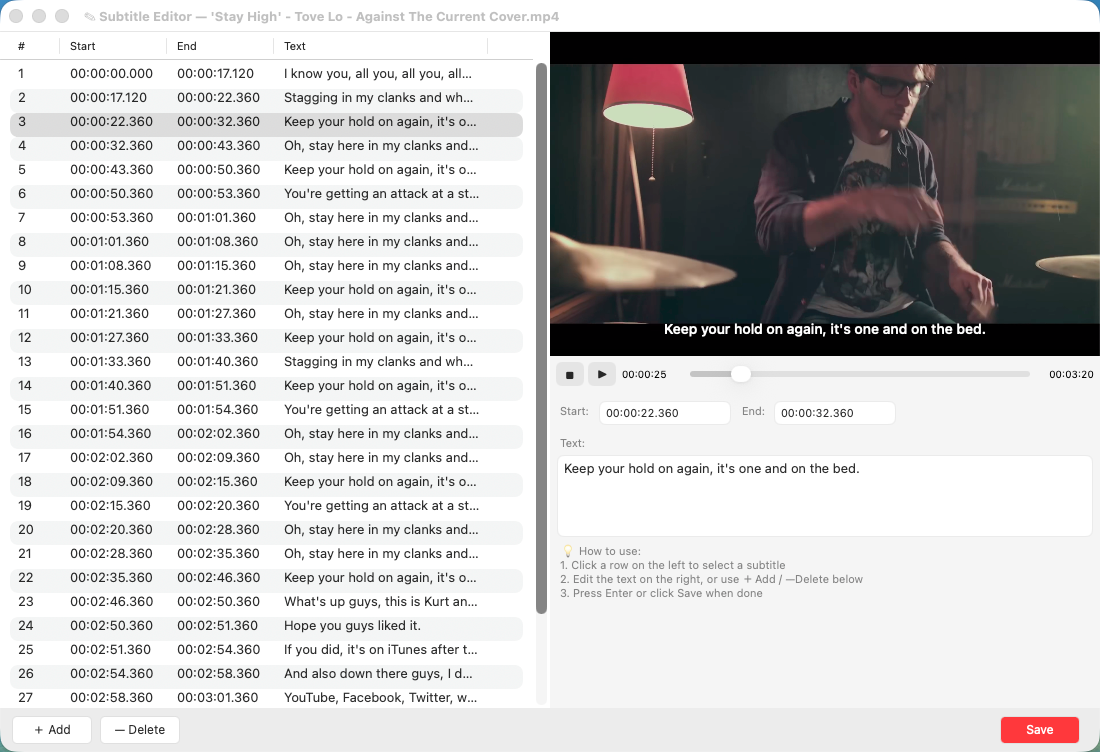
The most efficient way to catch subtitle errors is to watch the video with subtitles overlaid in real time. As the media plays, the current subtitle cue highlights. Your eyes naturally catch mismatches between what you hear and what you read.
3. Edit In-Place Without Switching Tools
For each error you find:
- Click the subtitle row — the player jumps to that timestamp
- Edit the text directly in the side panel
- Adjust timestamps if the cue is early or late
- Delete or merge duplicate subtitle fragments (a common Whisper artifact)
Every change is saved instantly to the file and reflected in the player overlay immediately.
4. Watch the Transitions
Most timing errors happen at cue boundaries. Watch the last 2 seconds and first 2 seconds of adjacent subtitles. A quick drag in the timeline fixes 90% of drift issues.
Common Error Types (And Their One-Click Fixes)
Whisper split one sentence into three cues → Select the first cue, drag its end time to cover all three, delete the extras.
A word is spelled phonetically wrong → Click the subtitle row, type the correction, hit Enter. Saved.
Timestamp is off by a beat → Click the start or end time field, type or use arrow keys to nudge ±50ms.
Background noise transcribed as words → Delete the cue. The rest of the subtitles stay perfectly in sync.
Why This Matters
Here’s the uncomfortable truth: no AI subtitle tool is 100% accurate today. Not ours, not Descript, not Premiere’s auto-captioning. The difference between tools isn’t raw accuracy — it’s how fast you can correct what’s wrong.
A tool that gives you 95% accurate subtitles but takes 10 minutes to edit is worse than one that gives you 90% accuracy with a 2-minute editing workflow.
We built Yfli Screen Recorder’s subtitle editor around that insight: export with AI, review with synced playback, edit inline, done. Try it yourself — 7-day free trial, then 10 free exports after.
Ready to Try Yfli Screen Recorder?
Free download on the Mac App Store. No account required, no ads, no watermark.
Linda Ye
Product maker & writer at Yfli. Focused on crafting the best screen and audio recording experience on macOS.